How-to: Suomi.fi
This page describes how to set up Suomi.fi authentication for Trivore ID. A Suomi.fi user directory can be used to sign in to Trivore ID, or only for strong identification.
Configure Trivore ID
Basic configuration
Log in to your Trivore ID instance and select the namespace where you want to create the user directory. Only users in the selected namespace can use the Suomi.fi user directory for sign-in; users are also automatically created in that namespace, if creating new users is allowed.
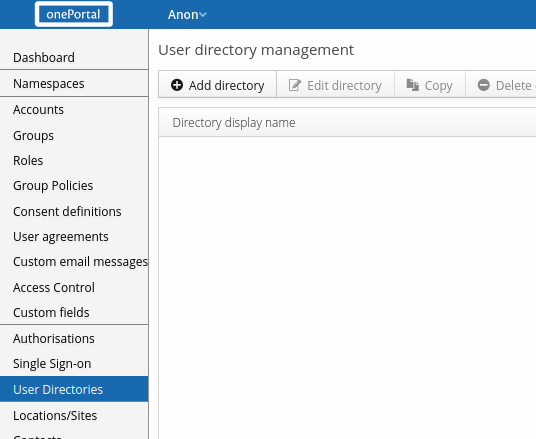
Navigate to "User directories" in the Main Menu and click "Add directory".
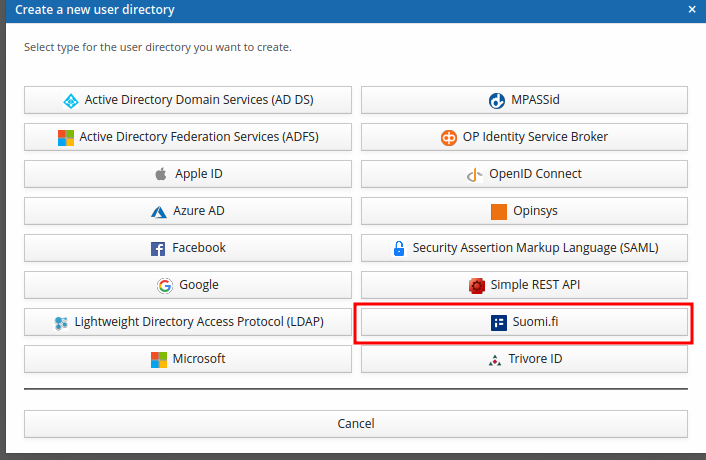
This opens a dialog where you select the type of user directory to add. Click "Suomi.fi".
SP entity ID is one of the most important fields. Its value should be your Trivore ID instance's URL, and it MUST be unique. If you have multiple Suomi.fi user directories in your Trivore ID, append a path component to the URL to keep them unique, for example:
https://id.example.com(if you only need one Suomi.fi user directory)https://id.example.com/municipality(if you need multiple Suomi.fi user directories)
The URL doesn't need to respond to anything when queried — it simply MUST be unique, since Suomi.fi uses this SP entity ID to uniquely identify the service provider.
The default values for the following fields are usually fine:
- Require response signature (you can select this if you want; Suomi.fi always signs the response message)
- Require assertion signature (selected by default; Suomi.fi signs the assertion)
- Require assertion encryption (you can select this if you want; Suomi.fi always encrypts the assertion)
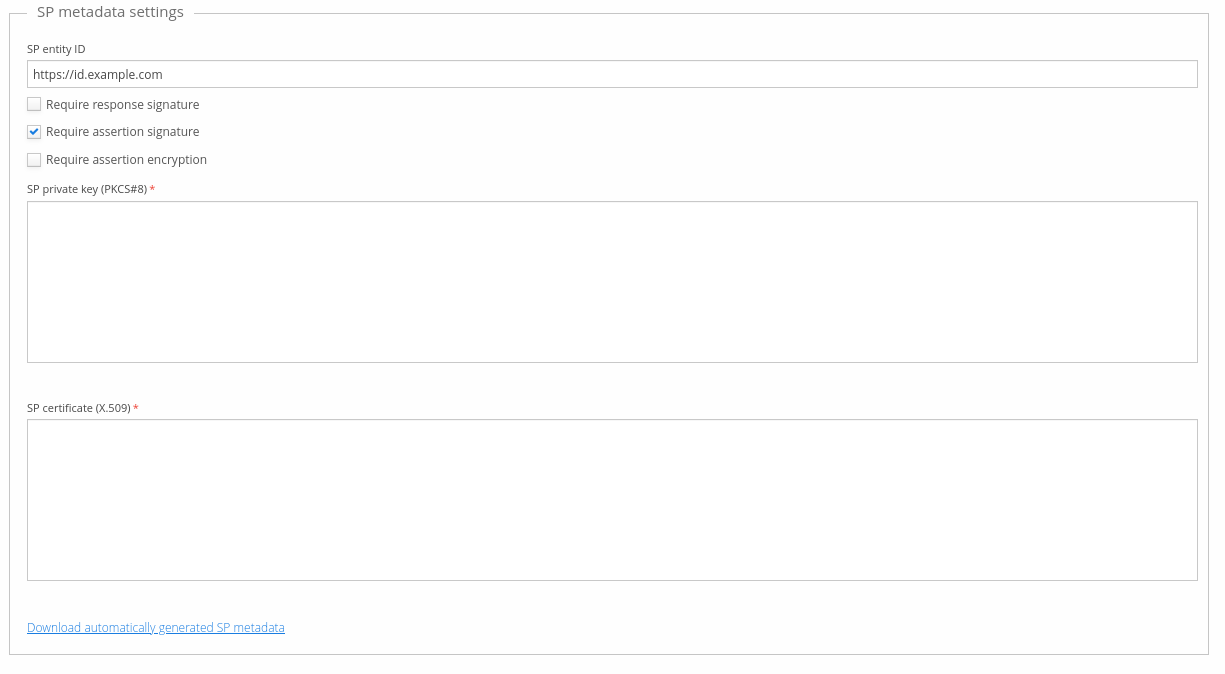
Next, generate a private key and certificate, used for authentication request signatures and response encryption. Suomi.fi accepts essentially any certificate (it even ignores validity dates), so you can use a tool such as OpenSSL to generate a self-signed certificate:
IDHOST=id.example.com
openssl genrsa -out mykey.pem 4096
openssl req -x509 -new -key mykey.pem -out mycert.pem -days 36500 -subj "/CN=$IDHOST/"
Change the IDHOST value as appropriate for your environment. These commands generate two
files, mykey.pem and mycert.pem — copy their contents into the "SP private key" and "SP
certificate" fields respectively. The generated certificate is valid for 100 years.
Suomi.fi officially recommends using proper certificates and rotating them periodically, but doesn't enforce this — be aware that this policy may change in the future.
Click "Download automatically generated SP metadata" and save it to a file; you'll need this metadata later on.
Next, download the Suomi.fi IdP metadata and paste it into the "IdP metadata XML" field. You can download the Suomi.fi IdP metadata from the following URLs:
- Testing environment: https://static.apro.tunnistus.fi/static/metadata/idp-metadata.xml
- Production environment: https://tunnistus.suomi.fi/static/metadata/idp-metadata.xml
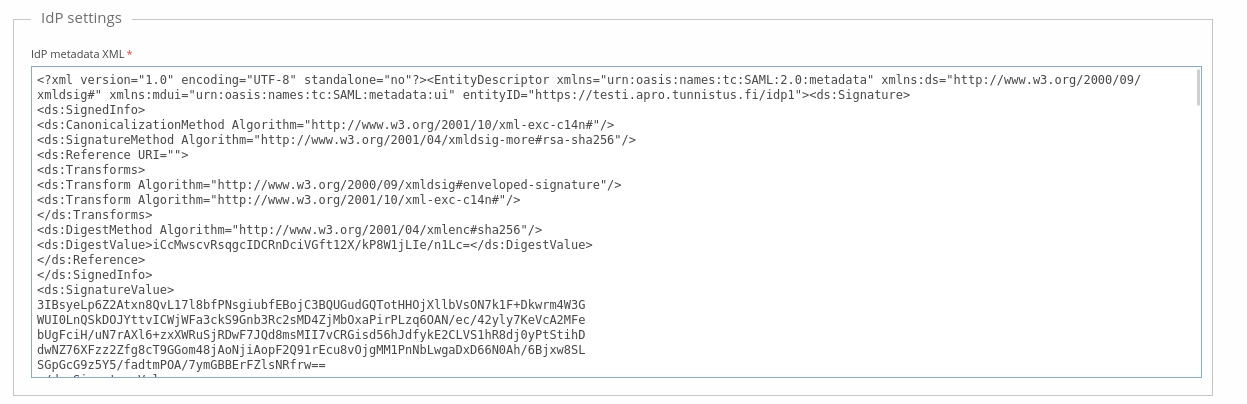
Save the changes. If you only need Suomi.fi for strong identification (as opposed to signing in), continue to Configure Suomi.fi; otherwise see User information below.
User information
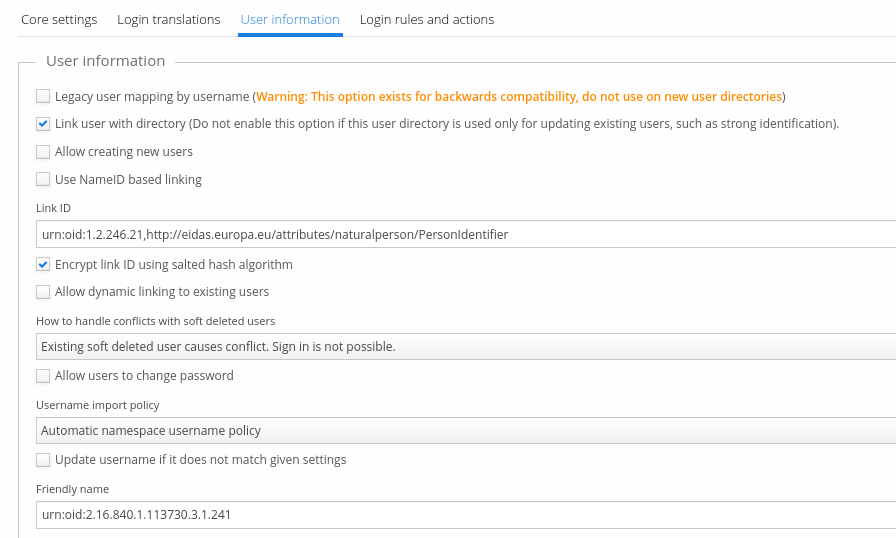
If your users need to be able to sign in to Trivore ID using Suomi.fi (as opposed to strong identification only), you need to enable user directory linking:
- Select "Link user with directory".
- Unselect "Use NameID based linking" — Suomi.fi uses transient
NameIDvalues, which aren't suitable for linking. - You most likely want to use the personal identity code for linking — set the "Link ID" field
to
urn:oid:1.2.246.21,http://eidas.europa.eu/attributes/naturalperson/PersonIdentifier. - Select "Encrypt link ID using salted hash algorithm", since personal identity codes shouldn't be stored in the database without encryption.
- Select "Allow creating new users" too if you want to enable Suomi.fi sign-in for any user, automatically creating an account for them.
- Select "Allow users to change password" if you want to also allow signing in to Trivore ID with a password. If not selected, users always need to use Suomi.fi to sign in, since they're never able to set a password.
- The recommendation for usernames is "Automatic namespace username policy". If your namespace policy doesn't support automatic usernames, a random SHA-1 hash is generated instead.
- You can use the attribute
urn:oid:2.16.840.1.113730.3.1.241for "Friendly name".
Dynamic linking
If you have existing users in the Trivore ID namespace who already have a personal identity code, and you want to enable Suomi.fi authentication for all of them, dynamic linking can do that — it links Suomi.fi accounts with Trivore ID accounts by comparing personal identity codes.
If you don't configure dynamic linking, existing users need to manually link their accounts with Suomi.fi using the "Link my account with another account" button on the Trivore ID Dashboard ("Verify your identity" also works). Otherwise, Suomi.fi sign-in creates a new user account (if allowed by settings).
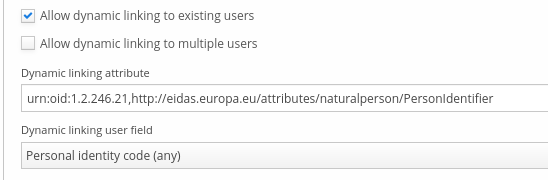
Select "Allow dynamic linking to existing users" to enable dynamic linking.
In rare cases, dynamic linking may find several Trivore ID accounts that match the Suomi.fi credentials. If you want to allow that, also select "Allow dynamic linking to multiple users" — users can then choose which account to use when signing in to Trivore ID.
"Dynamic linking attribute" defines which Suomi.fi attribute is used for dynamic linking; its
value is compared against the Trivore ID account. This is usually the personal identity code,
urn:oid:1.2.246.21,http://eidas.europa.eu/attributes/naturalperson/PersonIdentifier.
"Dynamic linking user field" defines which Trivore ID account field is compared against that Suomi.fi attribute. The common choice is "Personal identity code (any)", but you can also limit the comparison to the legal or strong-identification personal identity code if needed.
Configure Suomi.fi
The first step in configuring Suomi.fi used to be enriching the previously downloaded SP
metadata XML file, following these instructions
— opening the XML file in a text editor and adding the required information by hand.
As of Trivore ID version 4.43.0, there's no need to manually enrich the automatically generated SP metadata, since all supported parameters can be configured through the user interface. A full metadata example is available here.
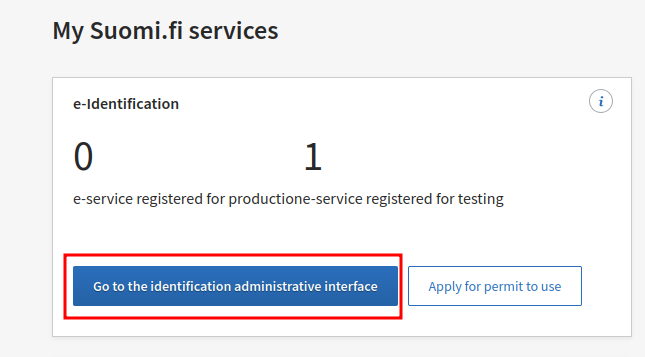
Next, log in to Suomi.fi service management at https://palveluhallinta.suomi.fi (this assumes you already have credentials for this service — if not, ask your administrator for access). After logging in, click "Go to the identification administrative interface".
If you've already created an e-service, continue to Register environment; otherwise, add a new e-service first.
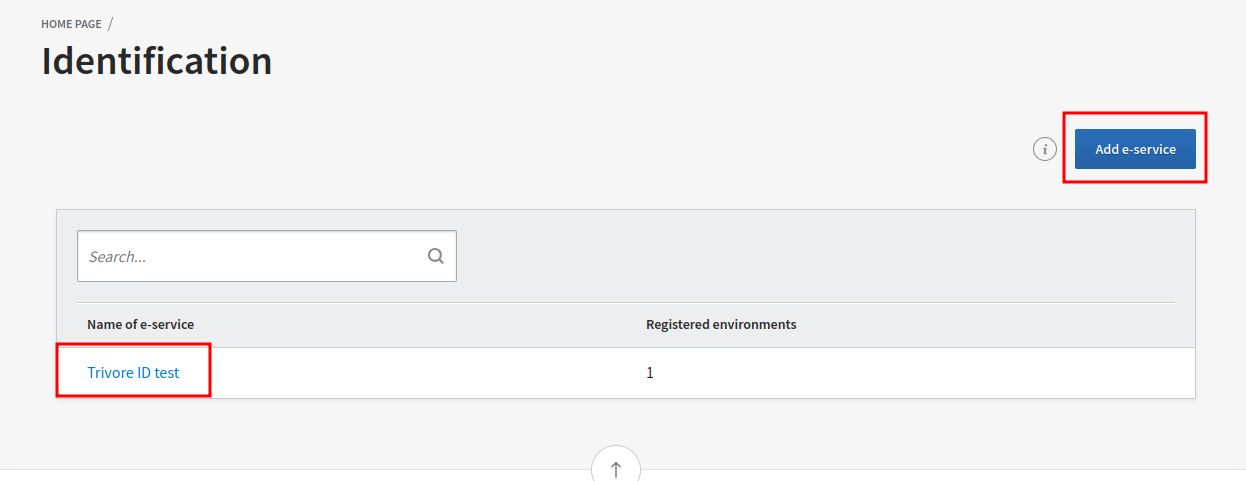
Add e-service
Add a new e-service by filling in the required fields: your service's name and description, in Finnish, Swedish, and English.
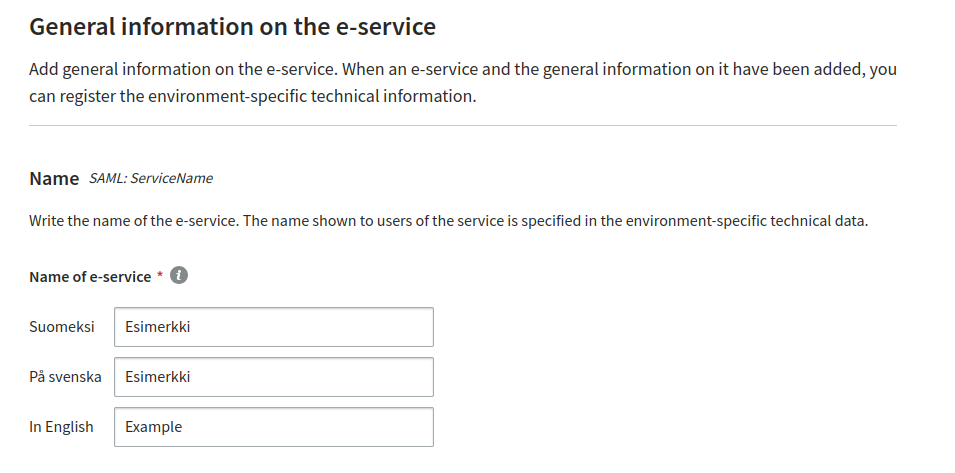
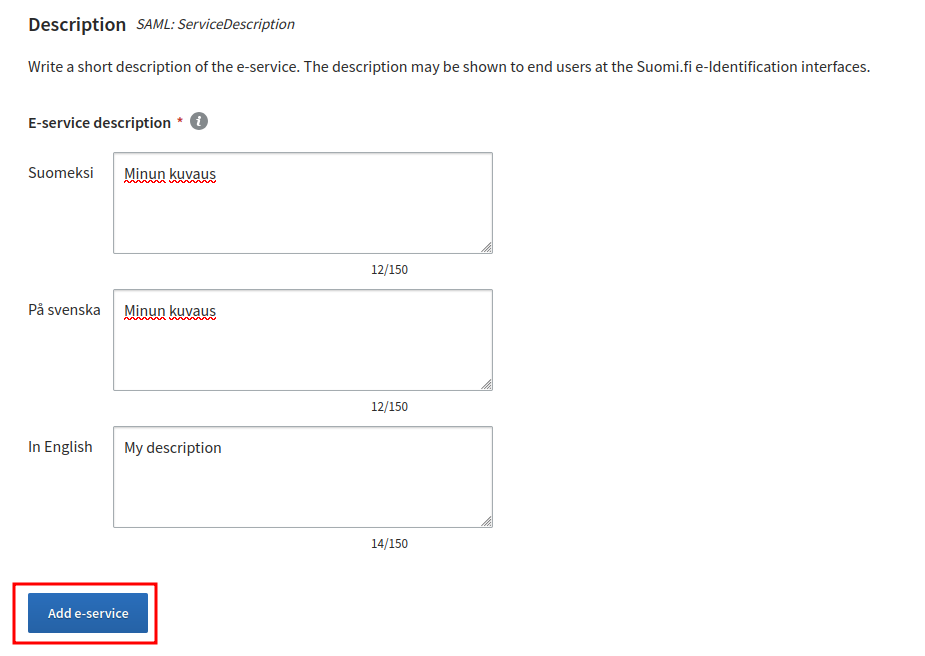
After filling in all the required information, click "Add e-service", then "Register or update the environment", and continue to the next section.
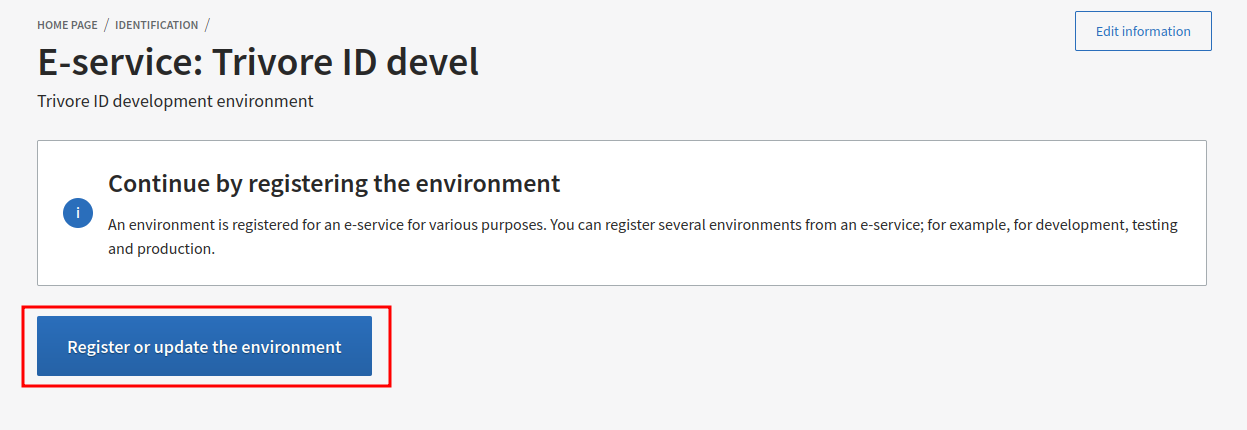
Register environment
Select the appropriate Suomi.fi environment (testing or production) and your e-service environment, which can be development, testing, acceptance test, or production.
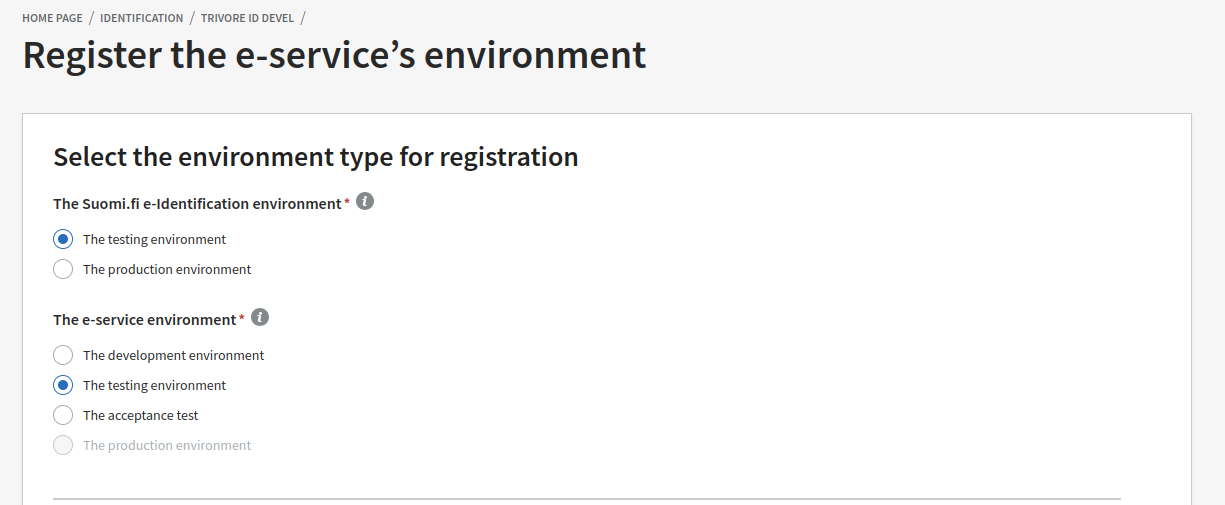
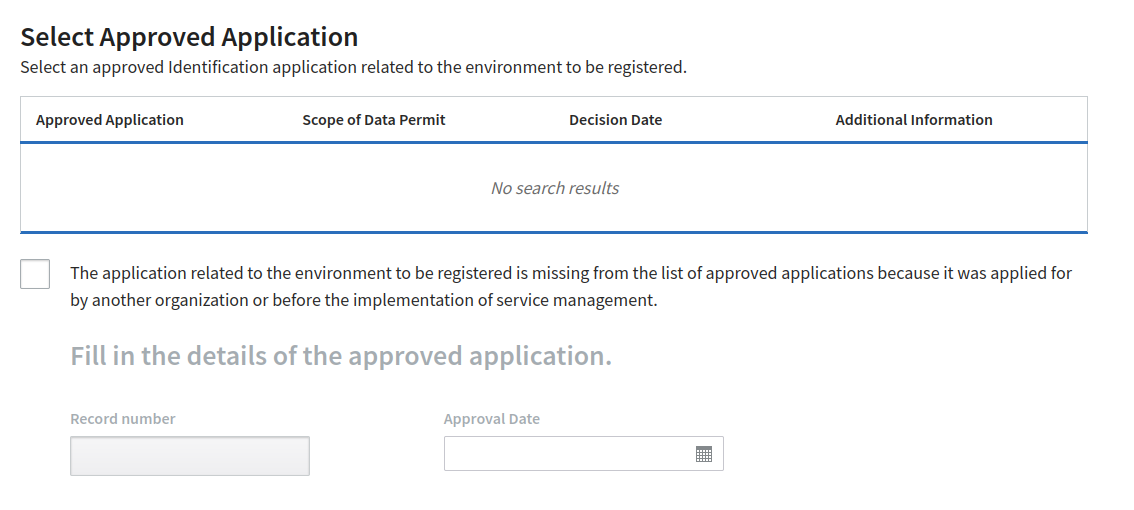
Note that using the production environment requires an approved application first — registering an approved application is outside the scope of this page. The Suomi.fi testing environment doesn't require an approved application.
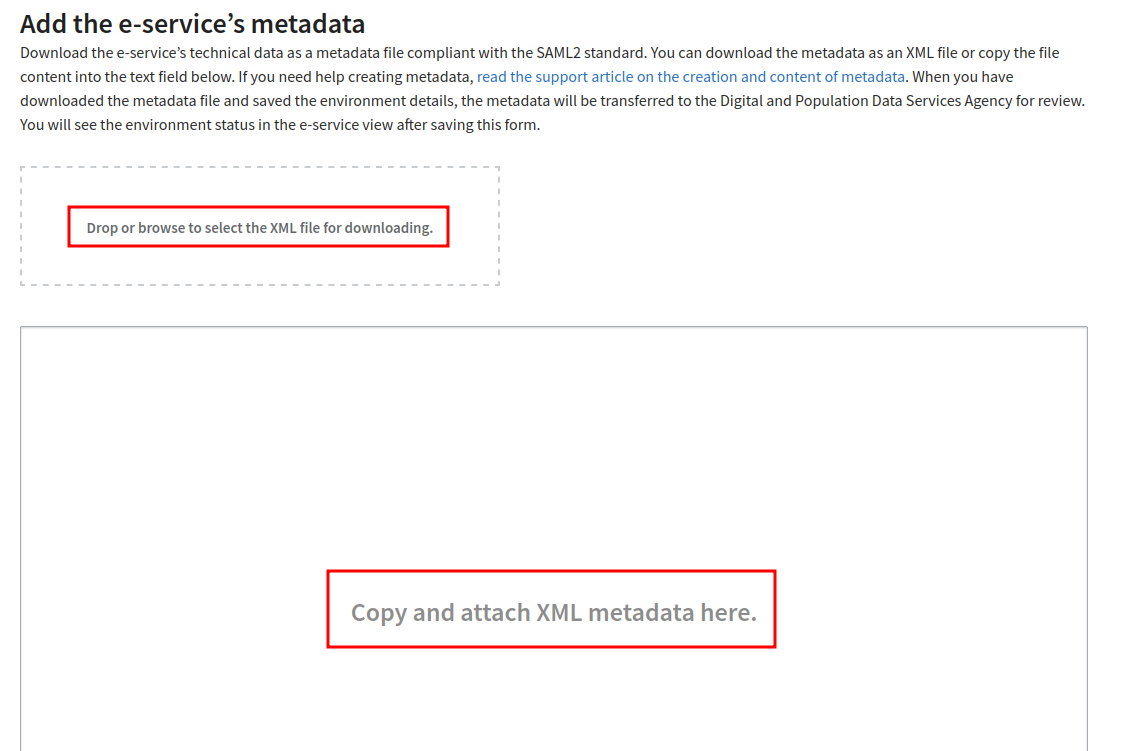
Next, either upload the SP metadata file or paste it into the field shown below.
Click "Save environment" — your Suomi.fi integration is now ready, though your environment initially awaits review. This can take a day or two, and the integration can't be used before it's accepted and published.
