Custom OIDC Scopes
You can create custom client scopes which let you customise the responses your OIDC client receives — in addition to the standard scopes and claims described in Scopes and Claims. A client scope is defined once and can then be enabled on any number of OIDC clients.
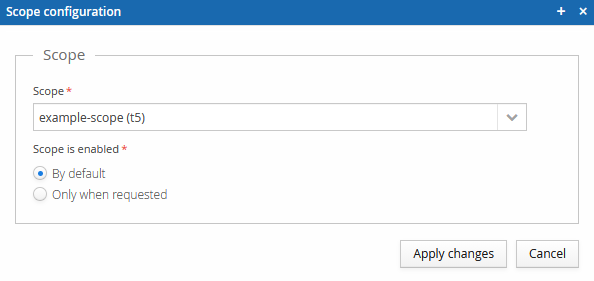
A client scope can be enabled on a client by default, or only on request, via the scope
parameter provided during the authorisation flow.
A client scope can modify any of the following responses:
- Access token (when JWT-formatted)
- ID token
- UserInfo endpoint
- Introspection endpoint
Modifications are performed by mappers, which can have different effects and independently target which of the responses above they apply to.
Mapper types
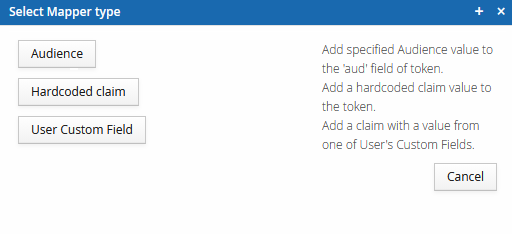
Currently the following mapper types are available:
- Audience
- Hardcoded claim
- User Custom Field
Audience
This mapper adds a value to a token's aud field: the original aud value, if any, is replaced
with a list that has the given audience value appended to it.
The audience value is provided in the editor's Custom audience value field.
Hardcoded claim
This mapper adds a claim with a hardcoded value.
Configure it by providing a Claim name, Claim value, and the value's type. The value itself is always entered as text; the type determines how it's rendered in the final JSON output.
- Text - as a text value. Example:
Hello world - Number (integer) - as an integer number. Example:
50 - Number (decimal) - as a number with decimals: Example:
50.123 - Boolean - as a
trueorfalsevalue. Example:trueorfalse - JSON - As a JSON object, array, or other. Best effort conversion is attempted. Example:
{"foo":"bar", "example":50.123}or["value", "another"]
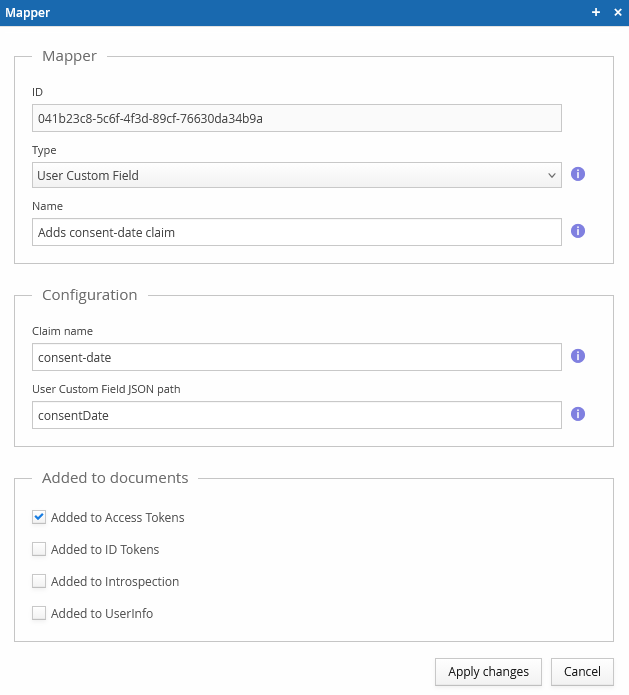
User Custom Field
This mapper places a value from the user's custom fields into the token.
Configure it by providing a Claim name and a User Custom Field JSON path. The JSON path
is just the custom field's name if it's at the root level, or a dotted path navigating into a
deeper object — for example, myfield or myfield.subfield. If a matching custom field is
found, its value is used as the claim value.
Configuring Client Scopes
Configuring client scopes requires certain Trivore ID permissions:
CLIENT_SCOPE_VIEW- view client scopes in accessible namespacesCLIENT_SCOPE_CREATE- create new client scopesCLIENT_SCOPE_MODIFY- modify existing client scopes in accessible namespacesCLIENT_SCOPE_REMOVE- delete client scopes in accessible namespaces
CLIENT_SCOPE_CREATE, CLIENT_SCOPE_MODIFY, and CLIENT_SCOPE_REMOVE each individually imply
CLIENT_SCOPE_VIEW — you don't need to grant it separately alongside them.
Listing scopes
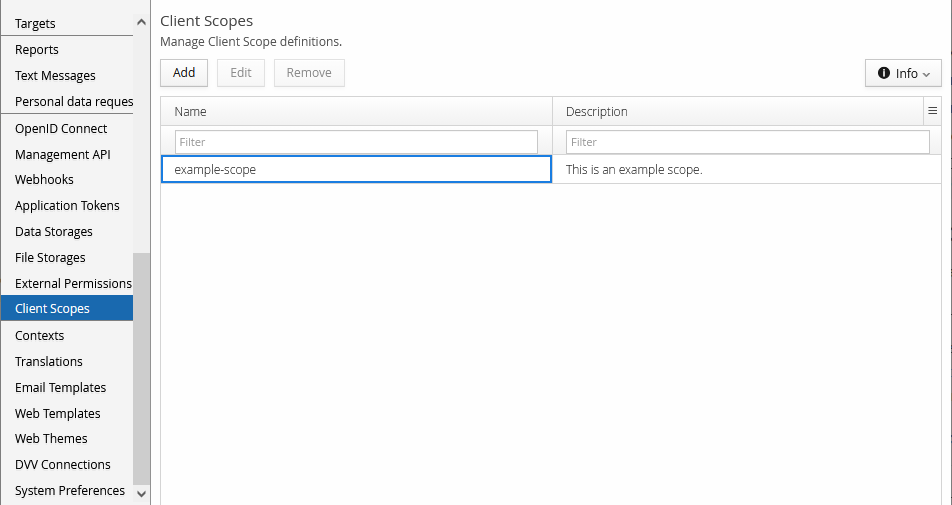
Open the Client Scopes view in the Management UI. This view displays the client scopes configured in the current namespace. You can manage the listed scopes using the menu bar buttons.
Editing a scope
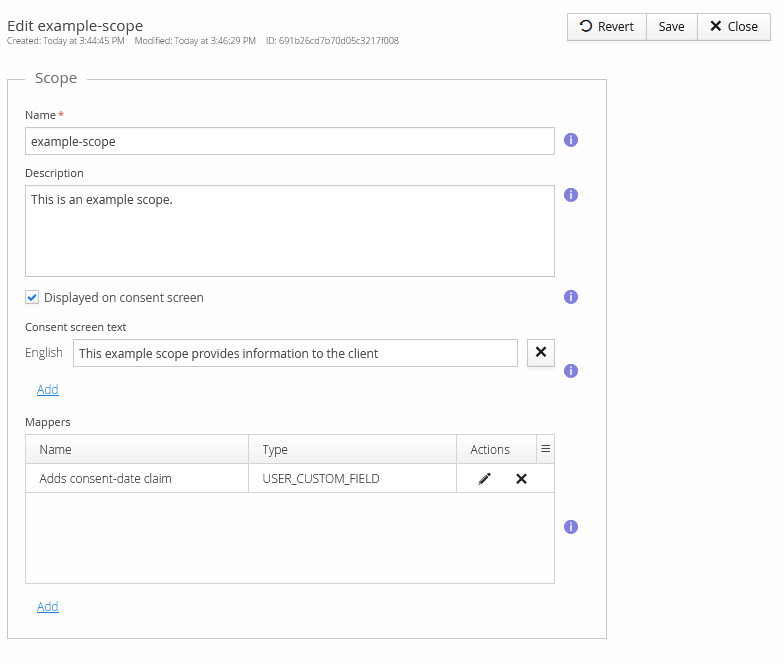
The editor for a scope has fields for its name, description, whether it's shown on the consent screen (and its per-language consent text if so), and its list of mappers.
Mappers
When adding a new mapper, you must first choose its type.
Every mapper has an ID (generated automatically) and a name, in addition to its type-specific configuration fields described above. The Added to documents checkboxes control which of the access token, ID token, introspection response, and UserInfo response this specific mapper applies to — a single scope can have several mappers, each targeting different documents.
Enabling a client scope
Client scopes are enabled on an OIDC client, not on the client scope itself — the same scope can be enabled on many clients. Open the OIDC client editor's Authorisation tab, and use Add under Enabled Client Scopes in the Scope panel — distinct from that same panel's Default scope and Restrict allowed scopes, which control standard (non-custom) OIDC scope behaviour.

When adding a scope, you must select whether it's enabled by default, or only when requested
with the scope parameter.