Multi-Factor Authentication (MFA)
Multi-factor authentication (MFA, also called two-factor authentication or 2FA) requires users to confirm their identity with more than just a username and password ("something you know"). After entering their password, the user is asked for a one-time code from a second factor ("something you have") before they are signed in.
Trivore ID also supports passkeys as a sign-in method (see Passkey Configuration). Passkey support is still under active development and is not yet available as a normal sign-in method, so it is not currently part of the MFA options described on this page.
Supported MFA methods
Authenticator app (TOTP)
The user installs an authenticator app (for example Google Authenticator, Microsoft Authenticator, or a password manager with TOTP support) and links it to their account. The app generates a new 6-digit code every 30 seconds, based on the TOTP (time-based one-time password) standard. The user enters the current code from the app after their password.
This is the most secure of the supported methods, since the code is generated locally on the user's device rather than sent over a network.
SMS message
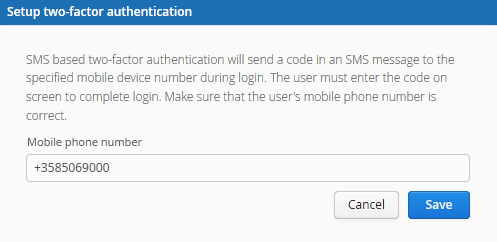
A code is sent by SMS to the user's verified mobile number each time they sign in. The user enters the code they receive.
This method requires the user to have a verified mobile number on their account, and requires SMS sending to be configured for the namespace.
Email message
A code is sent to the user's verified email address each time they sign in. The user enters the code they receive.
This method requires the user to have a verified email address on their account.
Configuring MFA requirements
Whether MFA is recommended, required, and which methods are allowed is configured on the Security tab of a namespace's policies. There are two places these settings can be set:
Default policy (namespace-wide)
Every namespace has a default policy that applies to all of its users unless a more specific policy overrides it. To edit it, go to Namespaces, select the namespace, then Configuration → Default policies. This opens the default policies editor, which includes the same Security tab and MFA options described below.
This is the place to set a baseline MFA requirement for the whole namespace.
Group Policies (per-group overrides)
To apply different MFA requirements to a subset of users — for example, requiring MFA only for administrators, or exempting a specific group from an otherwise namespace-wide requirement — create a Group Policy and assign it to a Group. A Group Policy's Security tab has the same MFA options, and its settings override the default policy for users who are members of that group.
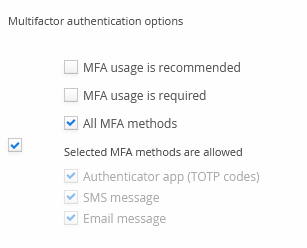
The available options are:
- MFA usage is recommended — users who haven't set up MFA are shown a prompt when they sign in, offering them the chance to set it up. They can dismiss the prompt and continue signing in without MFA. If a user does set up MFA in response to the prompt, their "Uses MFA" preference is turned on and they will keep using MFA on future sign-ins, even if this policy option is later turned off.
- MFA usage is required — users who haven't set up MFA yet are forced to complete MFA setup, and to verify with a second factor, on every sign-in.
- All MFA methods / Selected MFA methods are allowed — controls which of the methods above users may choose from. Leave All MFA methods checked to allow the authenticator app, SMS, and email methods, or uncheck it and select individual methods from the list to restrict which ones are offered.
- Skip send code phase for email MFA / Skip send code phase for SMS MFA — during sign-in, users are normally shown a confirmation step before their code is actually sent by email or SMS. Set the relevant option to Yes to skip that confirmation and send the code immediately instead. Defaults to No (confirmation shown) for both methods.
If a user is affected by more than one Group Policy, or by both the default policy and one or more Group Policies, the last value set for a given setting is the one that takes effect — see Group Policies for how policy order is determined. Check where else MFA settings might be configured if the effective behavior doesn't match what you expect from a single policy.
User's MFA preferences
The following MFA-related state is stored per user account:
- Whether the user has MFA enabled for sign-in
- Which MFA method they currently use
- Any keys or secrets needed by their chosen method (for example, the TOTP shared secret)
Setting up MFA (self-service)
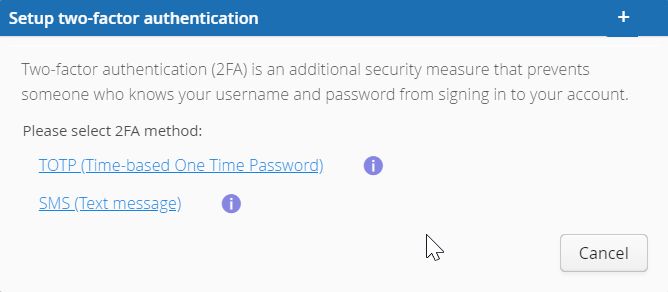
From the Personal Menu (select your name in the Top Bar), choose Setup two-factor authentication. You'll be asked to pick a method from those enabled for your account.
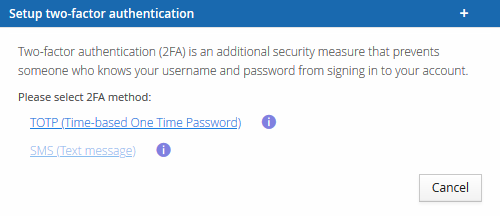
Authenticator app (TOTP)
-
Select TOTP (Time-based One Time Password). You'll be prompted to make sure you have a compatible authenticator app installed (such as FreeOTP or Google Authenticator) before continuing.
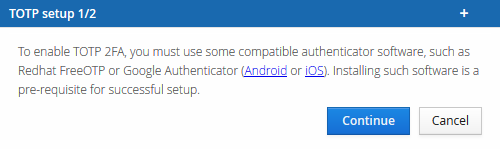
-
On the next screen, a new key is generated for your account. Scan the displayed QR code with your authenticator app, or enter the Account and Key values manually if your app can't scan codes.
-
Enter the current code generated by your app to confirm the setup, then save.
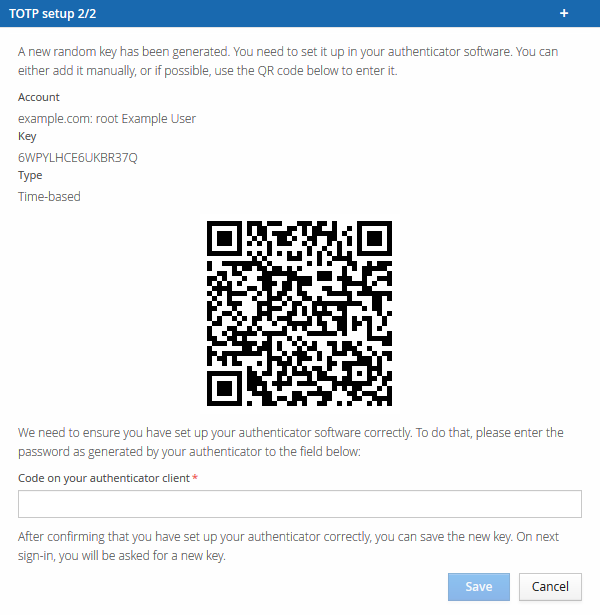
-
Sign out and sign back in to confirm the app works before you rely on it — you'll need a fresh code from it on every sign-in from now on.
SMS
-
Select SMS (Text message).
-
Confirm or enter the mobile number that should receive your sign-in codes, then save.
-
Sign out and sign back in to confirm you receive the SMS code correctly.
Administrator actions
From the Accounts view, an administrator can select one or more user accounts and use Actions → Two-factor authentication to enable or disable MFA for them in bulk. This bulk action currently only supports enabling SMS-based MFA — it cannot be used to set up the authenticator app or email methods for a user, since those require the user's own involvement (scanning a QR code, or confirming a code sent to them) to set up.
Disabling MFA for a user
If a user is unable to complete MFA and needs it disabled, any of the following will clear their MFA preferences:
- The user resets their own password — a successful password reset clears MFA preferences as a side effect.
- The user reconfigures or disables MFA themselves through the personal menu.
- An administrator disables MFA for the account, as described above.