Group Policies
Policies are Trivore ID's mechanism for account-level settings — things like MFA requirements, password rules, session inactivity limits, and default UI language — that apply across many user accounts at once instead of being set per account. There are two kinds:
- A namespace-wide default policy, which applies to every user account in the namespace.
- Any number of Group Policies, which are assigned to specific Groups and override the default policy for their members.
To use policies effectively, it helps to understand how they relate to Permissions, Roles, and Groups: Roles and Permissions control what a user can do in the product, while policies control account settings and behavior. A policy can also reference a custom Role, which is then applied to every member of the group the policy is assigned to.
It is possible to assign a Role directly to an individual user account, but this is not recommended, and this ability may be removed in a future version. Manage roles through Groups and Group Policies instead, so that access changes stay consistent and auditable across the users they affect.
Default policy
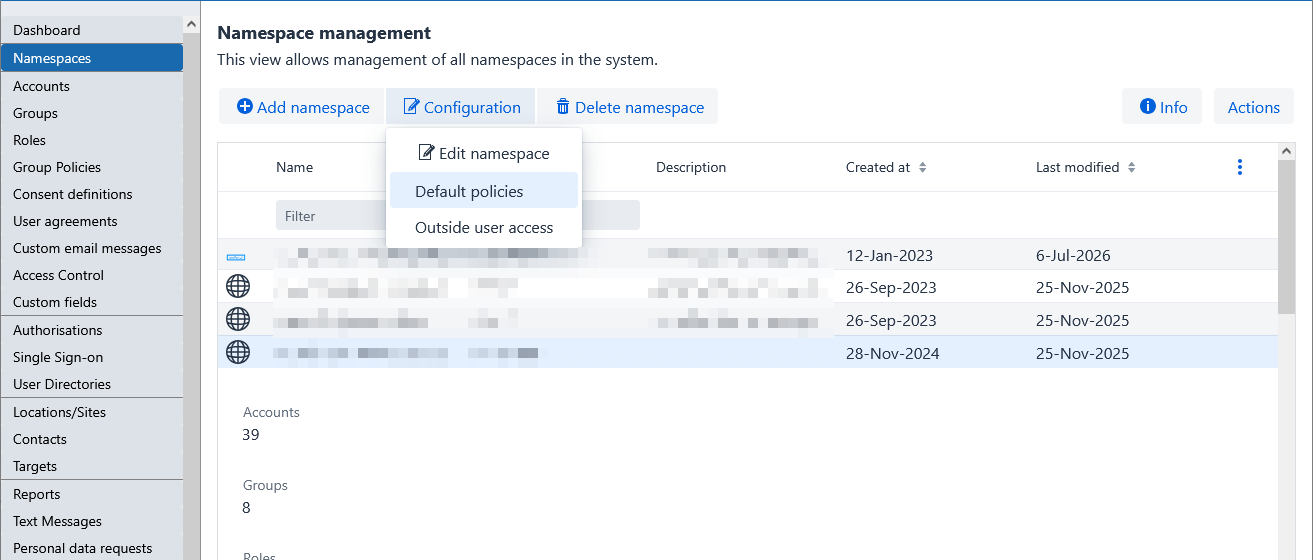
The default policy is edited from Namespaces: select the namespace, then Configuration → Default policies. Unlike Group Policies, the default policy is not part of the Group Policies list described below — it is edited separately, since it is a property of the namespace itself rather than something assigned to a Group.
Group Policies
The Group Policies main menu item opens the list of Group Policies defined in the namespace, alongside Add policy, Edit policy, Copy, Delete policy, and Up / Down buttons for reordering.
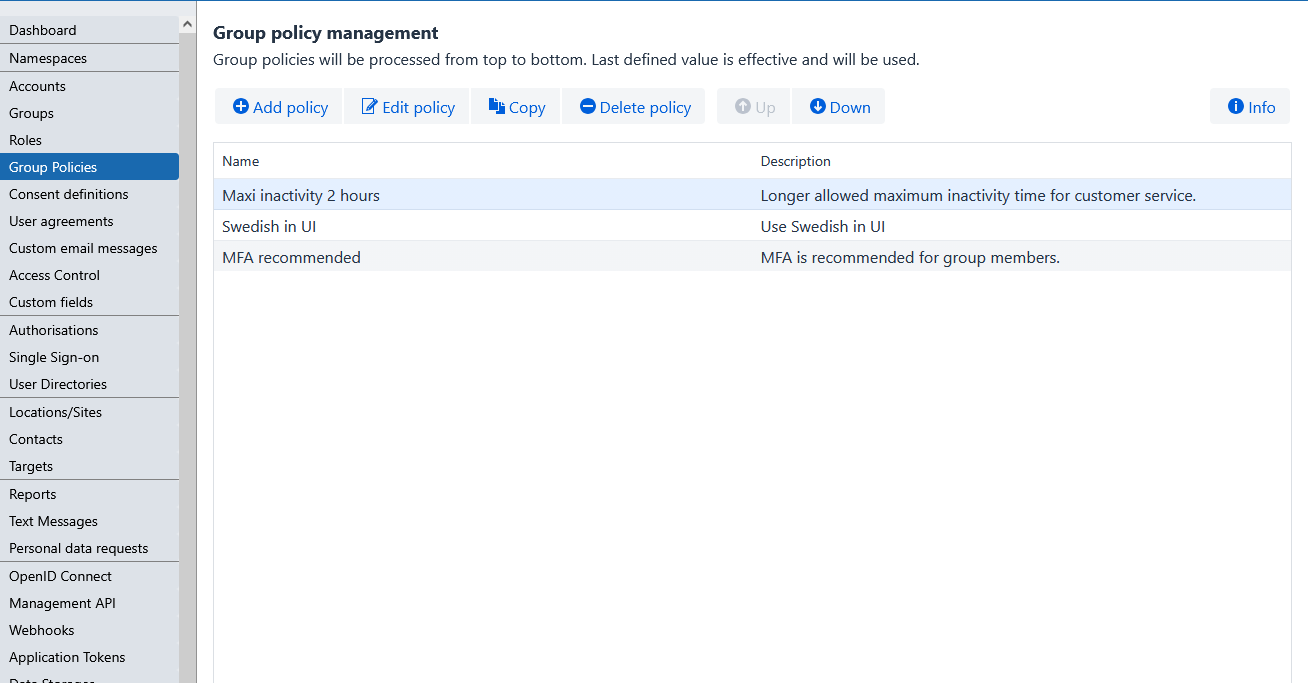
Group Policies are evaluated top to bottom in the order shown in this list — the same order regardless of which Group a user reaches a given policy through. If more than one applicable policy (including the default policy) sets the same setting, the last value set wins. This makes policy order important once you have more than a couple of policies with overlapping settings.
Plan out your Group Policies — which settings each one is responsible for, and the order they need to run in — and document that design, rather than discovering the effective configuration by trial and error later.
A Group Policy is assigned to a Group from the Group's own editor, on its Policies tab: select the policy from the dropdown to assign it. A Group can have more than one Group Policy assigned.
Policy settings reference
The default policy and Group Policy editors share the same set of tabs, except for Default group policy settings, which only appears when editing the default policy (see below). Each tab groups a related set of account settings:
| Tab | Controls |
|---|---|
| Group policy | The policy's own name and description. |
| User account | Whether users may add a profile photo, file storage quotas, and email/mobile verification behavior (link expiration, whether mobile verification is required, daily attempt limits). |
| User Interface | Web UI Inactivity sign-out time. |
| Sign in | Whether persistent sign-in is allowed, the default context after sign-in, whether a verified email or phone number may be used as an alternative sign-in name, and IP address allow/deny rules restricting where sign-in is accepted from. |
| Reset password | What account information the password reset form shows, and whether password reset is allowed at all. See also Password Reset. |
| Language etc | Preferred language/locale, date and time format, timezone, and display name format. |
| Security | Password rules (length, character classes, age, history, lockout behavior, and more under Show advanced settings), whether strong identification is required for MyData downloads, automatic unlock after email verification, and MFA requirements. |
| Other | Location/Site, the binding legal data location (for GDPR and similar), and any custom extension fields defined for your deployment. |
| Default group policy settings (default policy only) | Settings that only exist on the namespace's default policy and are enforced for every user account in the namespace — for example, Maximum strong identification age and Custom roles. These aren't available on regular Group Policies and can't be overridden by them. |
Example: default UI language for a group of users
- Go to Group Policies → Add policy. Give it a descriptive name and description on the Group policy tab, for example "Swedish in UI".
- On the Language etc tab, set the preferred language and locale to the desired values.
- Select Save.
- Create (or reuse) a Group for the users this should apply to, for example "Swedish speakers", and add the relevant user accounts to it on the User accounts tab.
- On the group's Policies tab, select the policy you created and save.
Example: longer inactivity timeout for a group of users
- Create a Group Policy named, for example, "Max inactivity 2 hours". On its User Interface tab, set Inactivity sign-out time to the desired value.
- Create a Group named, for example, "Customer service employees", and add the relevant accounts to it.
- On the group's Policies tab, select the policy you created and save.