Password Reset
Users can reset their password with an interactive form provided by Trivore ID. Administrators can also initiate a password reset from the Management UI.
Resetting a password this way also clears the account's MFA preferences, in case the user has also lost access to their second factor.
Resetting your password
The Password Reset form is accessible from OIDC sign-in views. The user is offered a link with a text similar to "I've forgotten my password" which they can use to open the form.
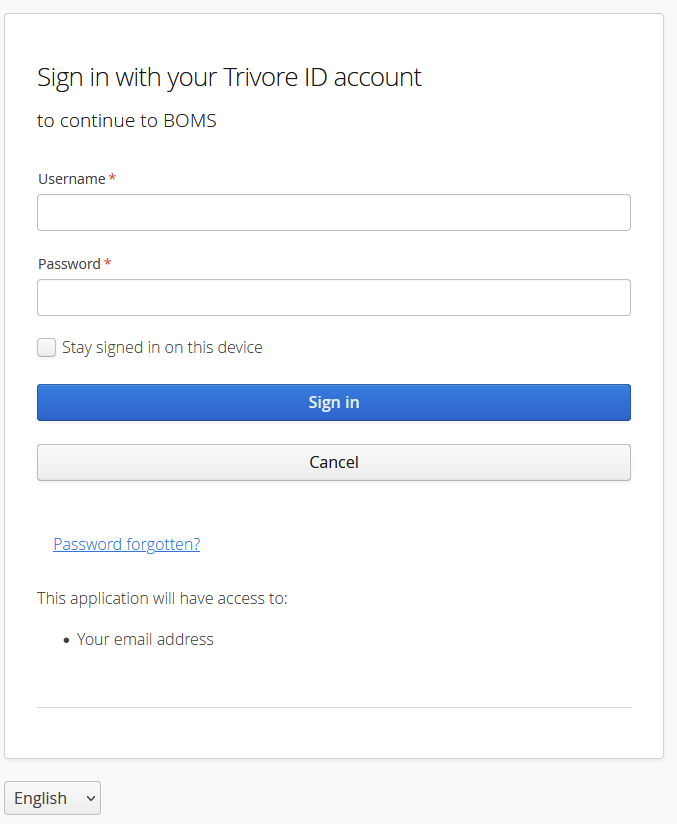
Using the Reset Password form
The user is asked for their sign in name, which may be their username, email address, or phone number, depending on the circumstances. The exact choice depends on which namespaces the user is expected to be in, and how they are configured. For example, when the form is accessed from a sign-in view of an application which accepts users from a single namespace, that namespace's configuration is used.
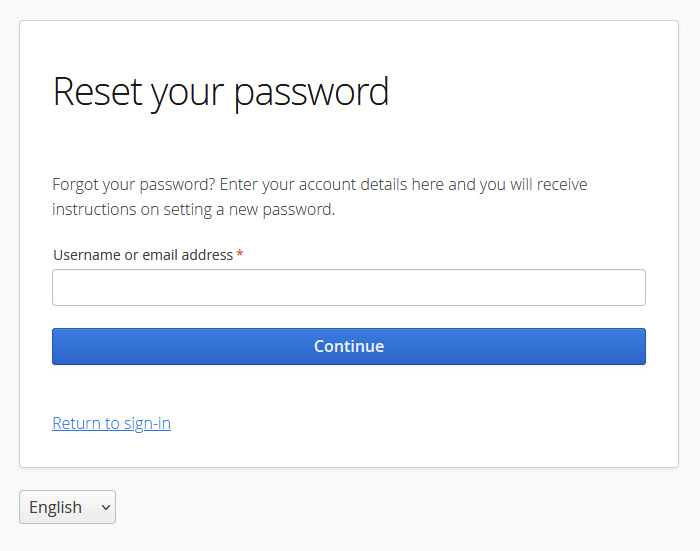
After entering the sign-in name, a message is sent to the user to one of their confirmed email addresses.
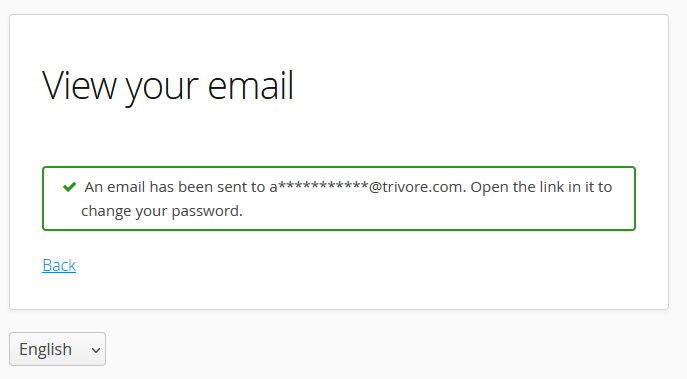
The email contains instructions on continuing. It will have a link the user must open.
The link leads to a form where the user will enter their new password. It must meet the password requirements from their namespace and group policies.
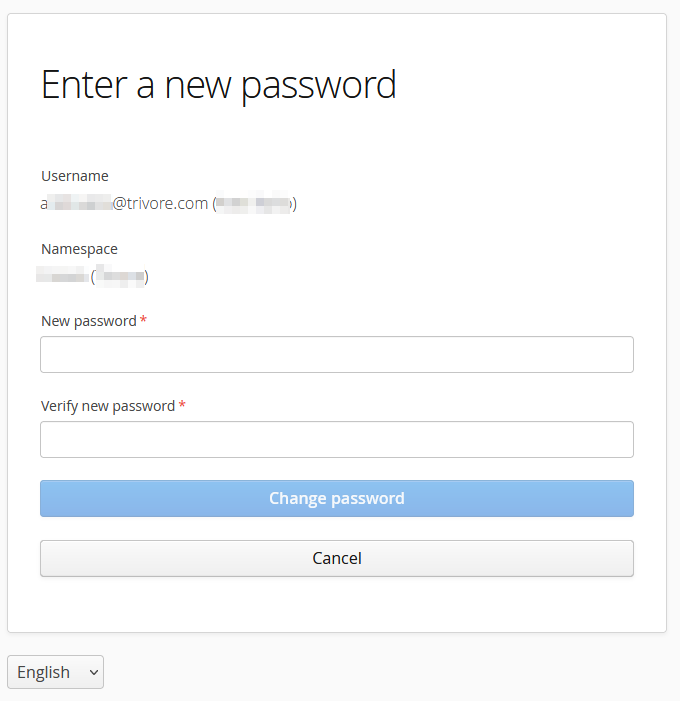
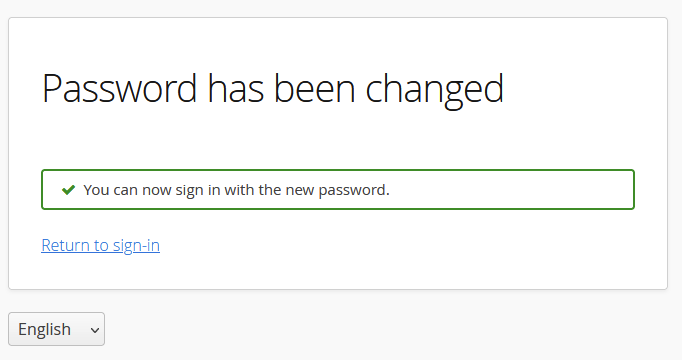
After entering the new password the user is shown a link back to the sign-in view.
Directing users directly to the form
It is recommended that users enter the form through the sign-in view.
However, it is possible to direct the user to the Reset Password form from external sites by constructing a URL with special query parameters and directing the user there.
Example: https://{your-id-server}/resetPassword?
| Query parameter | Value | Purpose |
|---|---|---|
un | User's username | Value will be pre-entered to sign-in name field. |
ns | User's namespace code | If given, user must be in this namespace. |
nsids | Comma separated list of namespace codes | If given, user must be in one of given namespaces. |
lu | Login URL | URL where user is directed after finishing or cancelling the reset password process. The URL must be in the system wide whitelist of accepted Reset Password URLs. |
locale | Preferred locale, example: en | View will open with this language selected. If not given, browser language detection is used. |
Configuring the form behaviour
Password reset behavior is configured at two levels: system-wide settings that apply to every namespace, and per-namespace settings that can restrict or disable it for a specific namespace.
System-wide settings
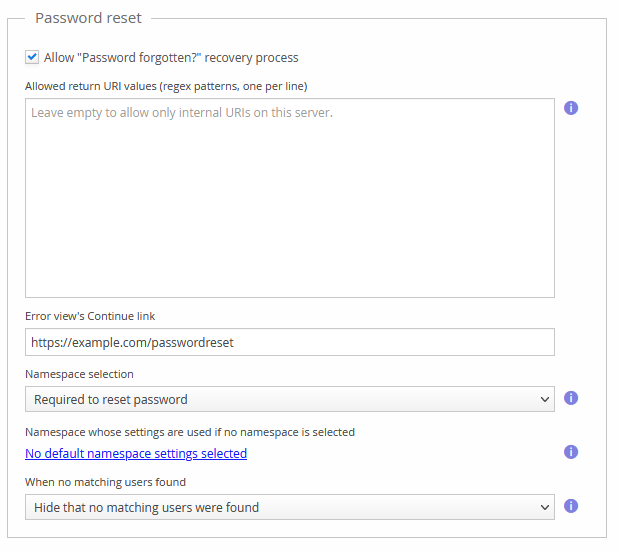
These are adjusted in Base settings, under System Preferences → Base settings → Password reset:
- You can disable password reset altogether.
- You can limit which return URI values are allowed.
- You can set a URL which is shown to the user if they use an invalid password reset link.
- You can control if namespace selection is required or not, and force a namespace if none is selected.
- You can control if the user is told if no matching accounts were found.
Per-namespace settings
A namespace's own Password Reset tab can further restrict this: whether password reset is allowed at all for that namespace, which identifiers (phone number, email address, username) users can be found by, whether an identifier must already be verified to be usable, and the name verification behavior during SMS- or email-based reset.
Translatable texts
| View | Translation code | Text usage |
|---|---|---|
| Invalid reset link clicked | passwordReset.error.continueLinkCaption | When a "Continue" link has been configured, it will have this text. |
passwordReset.error.invalidDataToken.heading | When a reset link is re-clicked after being used or it has expired, this heading is shown | |
passwordReset.error.invalidDataToken | When a reset link is re-clicked after being used or it has expired, this text is shown | |
passwordReset.error.invalidLink.heading | When a reset link with invalid parameters is clicked, this heading is shown | |
passwordReset.error.invalidLink | When a reset link with invalid parameters is clicked, this text is shown. |
Initiating password reset as an administrator
An administrative user can initiate password reset by going to the Accounts view, selecting a user, and choosing Actions → Request user to change password.