Navigating the UI
This page describes the visual elements common to the Trivore ID Management UI.
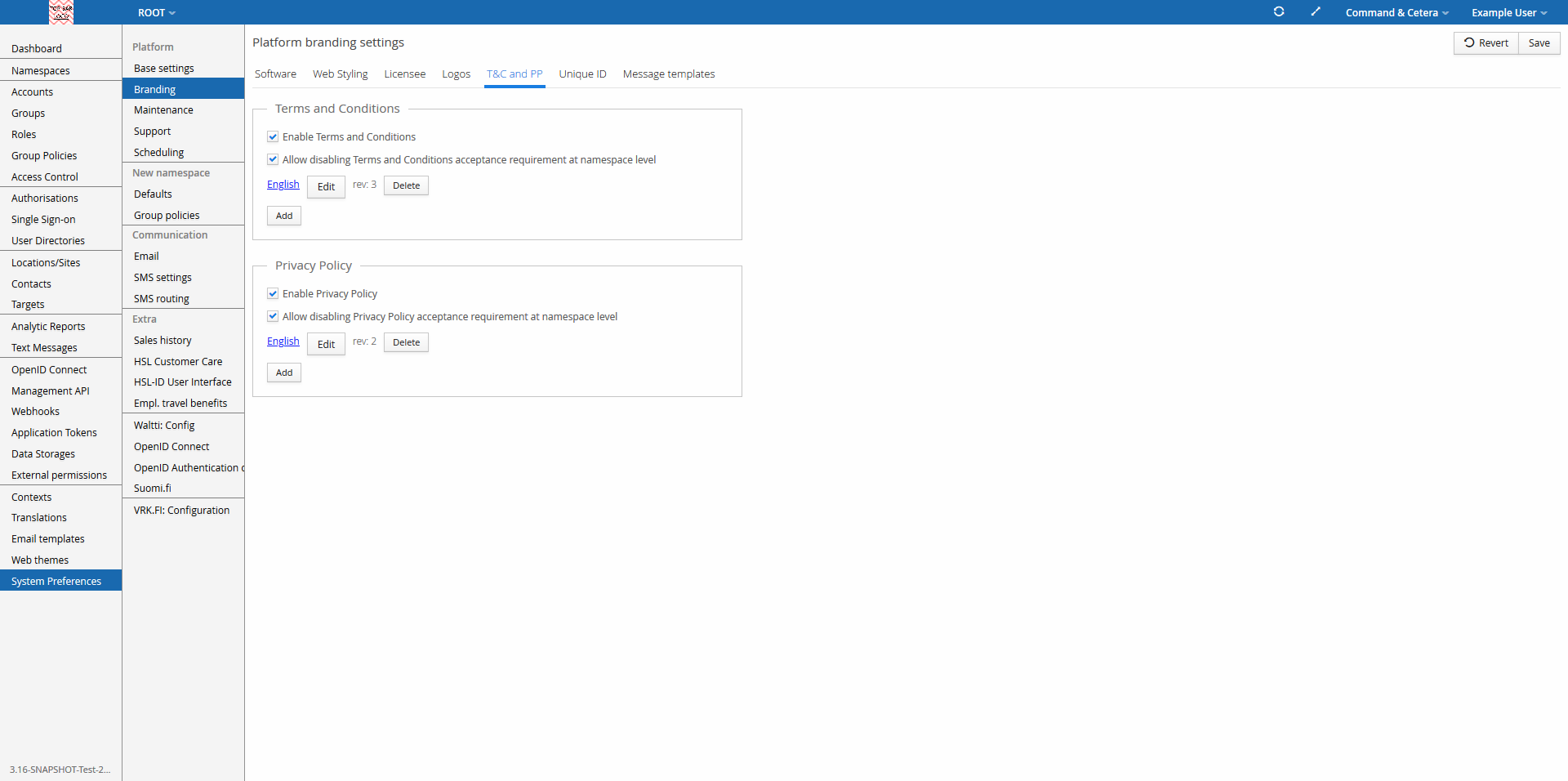
There are a few elements to get familiar with:
- Logo in the top corner of the screen. For a left-to-right (LTR) language such as English, the logo is in the top left corner; for a right-to-left (RTL) language, it moves to the top right corner.
- Main Menu is the pane below the logo (on the left for LTR languages, on the right for RTL languages).
- Top Bar is the thin horizontal bar containing the logo and a few other key elements.
From left to right, it includes:
- Logo — usually the name of the product, or the signed-in user's organisation logo.
- Namespace Menu — shows the currently active namespace. Most user accounts only ever see their own namespace name here; see Namespaces Menu below.
- Refresh button, to reload the content on screen. Some views intentionally omit it.
- Maximise/Restore button, to toggle the browser between full screen and its normal size.
- Context Menu — switches between application contexts; see Context Menu below. Portal administrators can disable this menu entirely, in which case it isn't shown.
- Personal Menu — shows the signed-in user's name; see Personal Menu below.
- Mid Pane is a second-level menu shown next to the Main Menu, visible only within System Preferences. It's a sub-menu of the Main Menu, intended for system administrators.
- Main Pane is the largest area on screen, where the actual view content is shown; see Main Pane below.
The next sections cover a few of these elements in more detail. What each Main Menu item does is covered on that item's own page — see Other Main Menu Items for the ones without one.
Namespaces Menu
This menu sits next to the Top Bar logo. Accounts with the Multi-namespace role can manage more than one namespace, and use this menu to switch between them. Other accounts just see their own namespace name here, without a dropdown.
Context Menu
The Context Menu, on the Top Bar, switches between application contexts — Trivore ID integrated custom applications built for specific business purposes, such as a customer care application or a MyData solution. Each context has its own Main Menu structure; only the Top Bar stays common between them.
This is mostly used by administrators rather than ordinary end users. Trivore ID's own Management UI is normally one of the contexts available in this menu. If a namespace's default application is not the Trivore ID Management UI, the functionality it exposes there is limited to personal settings management.
Personal Menu
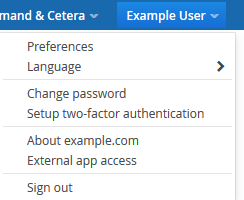
Open the Personal Menu by selecting your name in the Top Bar. It normally offers:
- Preferences, for reviewing and changing your own account information.
- Language, to quickly change the display language.
- Change password.
- Setup two-factor authentication, to configure MFA for your account — see Setting up MFA for the step-by-step flow. It's strongly recommended to enable MFA; some organisations may require it.
- About, showing licensee, conformance, version, and related information.
- External app access, showing which external applications have access to your account.
- Sign out — see Signing out below.
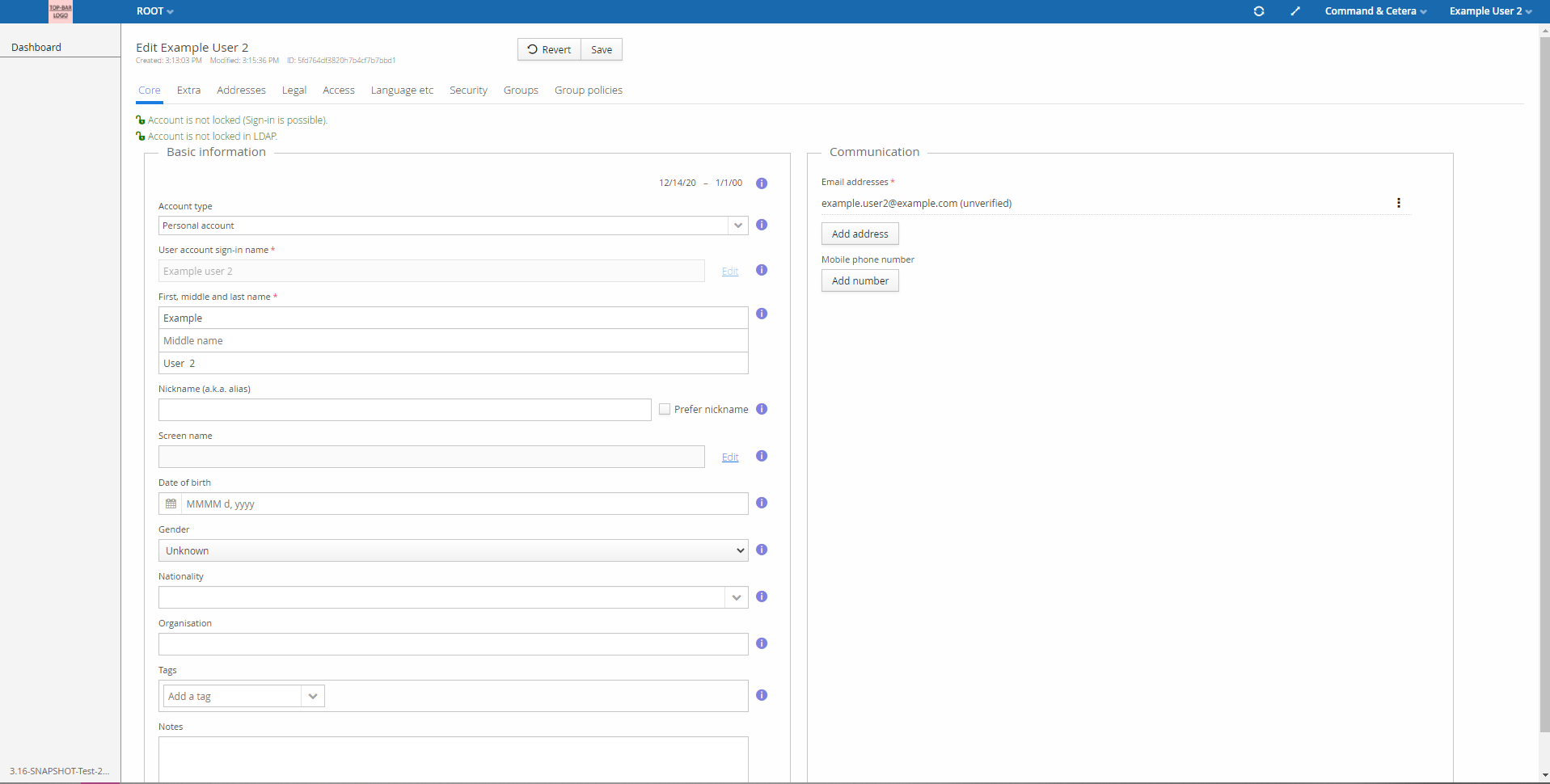
The image above shows that, by default, the Main Menu for a "normal" user account in the Trivore ID context is just the Dashboard — most Main Menu items require specific roles.
Preferences
Preferences is where each user manages the account data Trivore ID holds about them. Not all fields are editable — hover over the info icons next to a field for details on why.
The data is split across tabs; the tabs beyond Core are mostly view-only, showing information such as group memberships, roles, and security-related settings.
Some deployments use a separate external application or website to manage personal data instead, in which case more or less data may be editable there depending on that integration. It's also possible to fully disable web UI sign-in for an account, which also disables access to this view — an external application or website is then required to manage personal data.
Language
The language dropdown lets a user quickly change their interface language. Selecting a language reloads the page with the interface localised accordingly.
Change password
Password changes are a common task for every user account. A good long passphrase is the basis for account security — password length generally matters more than character complexity.
Depending on organisation policy, several factors affecting passwords can be configured, such as minimum length and expiration. These are set via Group Policies and normally apply the same way to all, or most, user accounts in a namespace — check with your local administrators for your specific requirements.
Password changes can be initiated in more than one way:
| # | Initiator | What happens |
|---|---|---|
| 1 | The account's password has expired | After a successful sign-in, a dialogue requesting a new password is shown. |
| 2 | The user initiates a password change themselves | Personal Menu → Change password. |
| 3 | An administrator enforces a password change at the user's next sign-in | After a successful sign-in, a dialogue requesting a new password is shown. |
| 4 | An administrator changes the password directly, and sends it to the user via SMS and/or email | After a successful sign-in, a dialogue requesting a new password is shown. |
| 5 | A new account was created with a temporary password that must be changed on first sign-in | After a successful sign-in, a dialogue requesting a new password is shown. |
| 6 | A new or existing account needs a password the user doesn't know, and a recovery email is sent | See Password Reset. |
Signing out
Personal Menu → Sign out is the only proper way to sign out of Trivore ID. It ensures the service immediately recognizes that you're no longer using it, and the sign-out is logged right away for auditing.
Closing the browser does not sign you out. The session stays active until it hits the account's inactivity timeout — which is why it's important to configure as short an inactivity timeout as is practical for your users.
After signing out properly, you're redirected immediately to the sign-in page. If you have multiple sessions open (several browser tabs or windows), signing out ends all of them and redirects each to the sign-in page.
Main Pane
The Main Pane is the largest area on screen, holding the actual view content. Its content changes based on the current Main Menu selection — the two are tied together, and each menu item's own page covers its Main Pane content (see Other Main Menu Items for the ones without one).
The general layout of the Main Pane is consistent across Trivore ID. There are generally two kinds of views shown here: a management view — a list of items, such as user accounts or namespaces, with buttons for adding, editing, and deleting entries — and an editor view, showing the details of a single item across a set of tabs, with Revert, Save, and Close actions. Both follow standard conventions throughout the product, and any view-specific behavior (such as filtering accounts) is covered on that view's own page.