How-to: Smartcard
This document describes how to setup Smartcard based authentication to Trivore.
Note that Smartcard authentication is based on mTLS (TLS client authentication) and configuring load-balancer mTLS authentication is out of scope of this document.
Usability tip: if you want to only allow smart card authentication and want to skip the step of selecting the method, you can use the acr_values query parameter as instructed in Advanced features
Core settings
Header configuration
Core settings are always required when configuring Smartcard user directory.
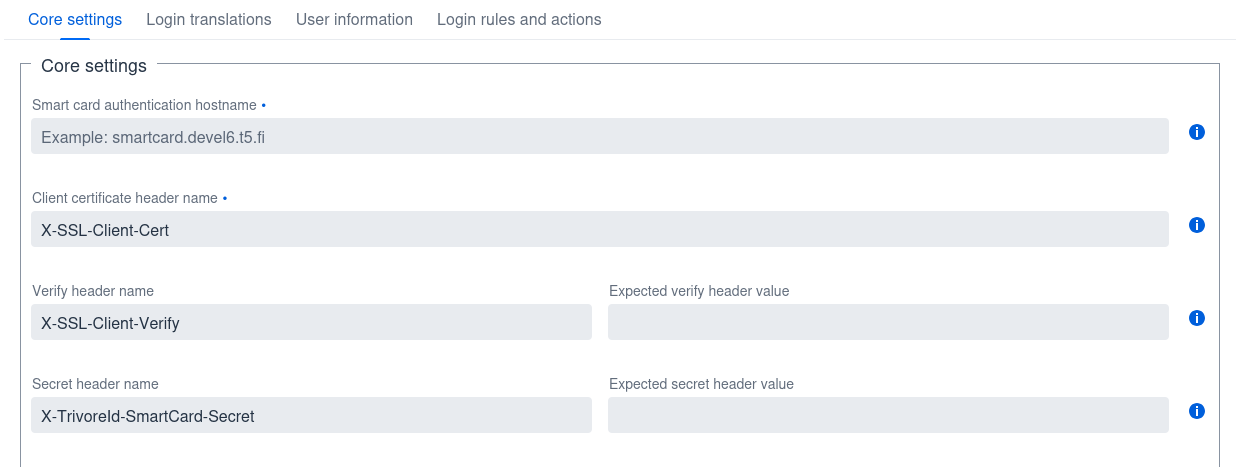
- Smart card authentication hostname: Hostname where browser should be redirected for mTLS authentication. This may or may not be the same hostname as ID instance primary hostname. Recommendation is to use separate hostname for mTLS authentication so that user is asked for Smartcard authentication only after they click the authentication button in login user-interface.
- Client certificate header name: HTTP header name that is used to transport TLS client certificate from load-balancer to ID instance. Default value is usually fine. Configure load-balancer accordingly. Certificate should be in Base64 format.
- Verify header name: HTTP header which indicates verification status for client certificate. Default value here is usually fine. Load-balancer MUST fill set this header value if both header name and expected value is configured.
- Expected verify header value: Expected verify header value which indicates that mTLS client authentication succeeded. Value SHOULD be defined if verify header name is defined.
- Secret header name: Secret header name. Secret header value should only be known by load-balancer and ID instance. This is to prevent client certificate injection using alternative hostname which does not perform mTLS client authentication.
- Expected secret header value: Expected value in secret header. SHOULD be defined if secret header name is defined.
Trusted certificates
Upload trusted intermediate and root certificates. Client certificates are trusted only if they are issued by these certificate authorities.
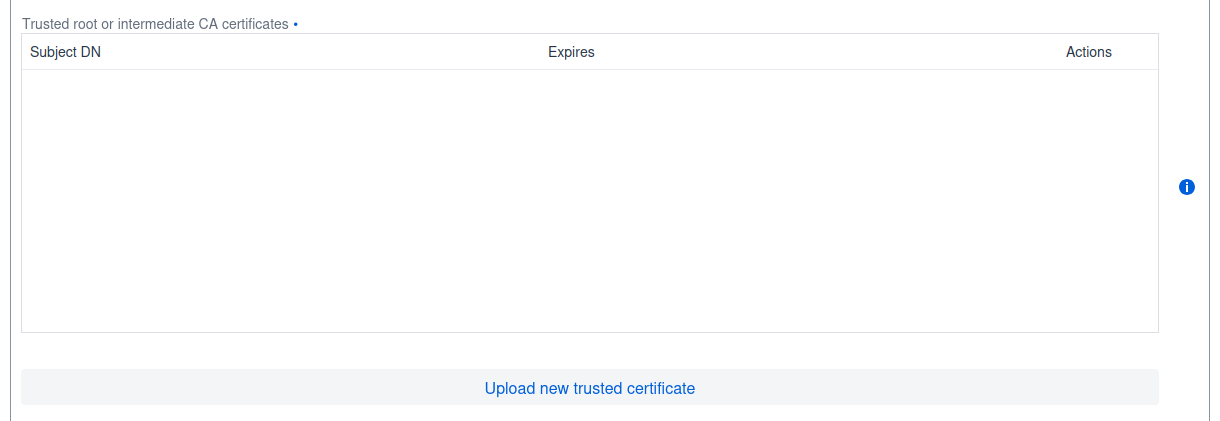
Finnish electronic ID CA certificates are available from https://dvv.fineid.fi/certificate-search.
Revocation check
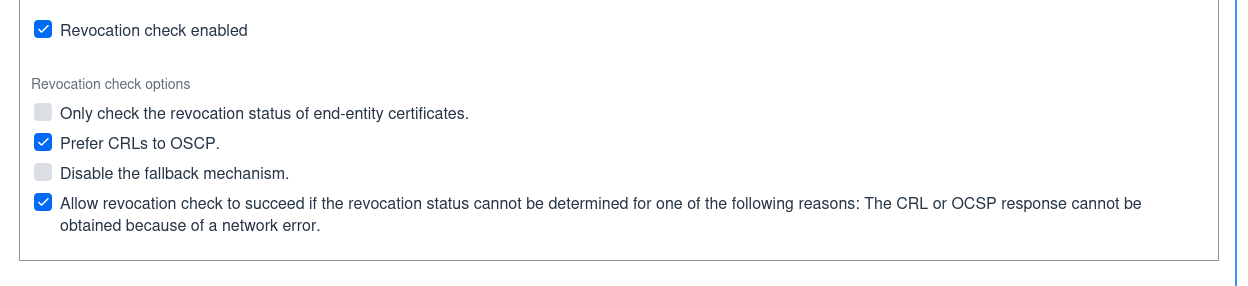
You may optionally enable certificate revocation check to be performed. Default settings are usually fine (revocation check enabled, CRL preferred and soft-failure enabled in case of network error).
LDAP settings
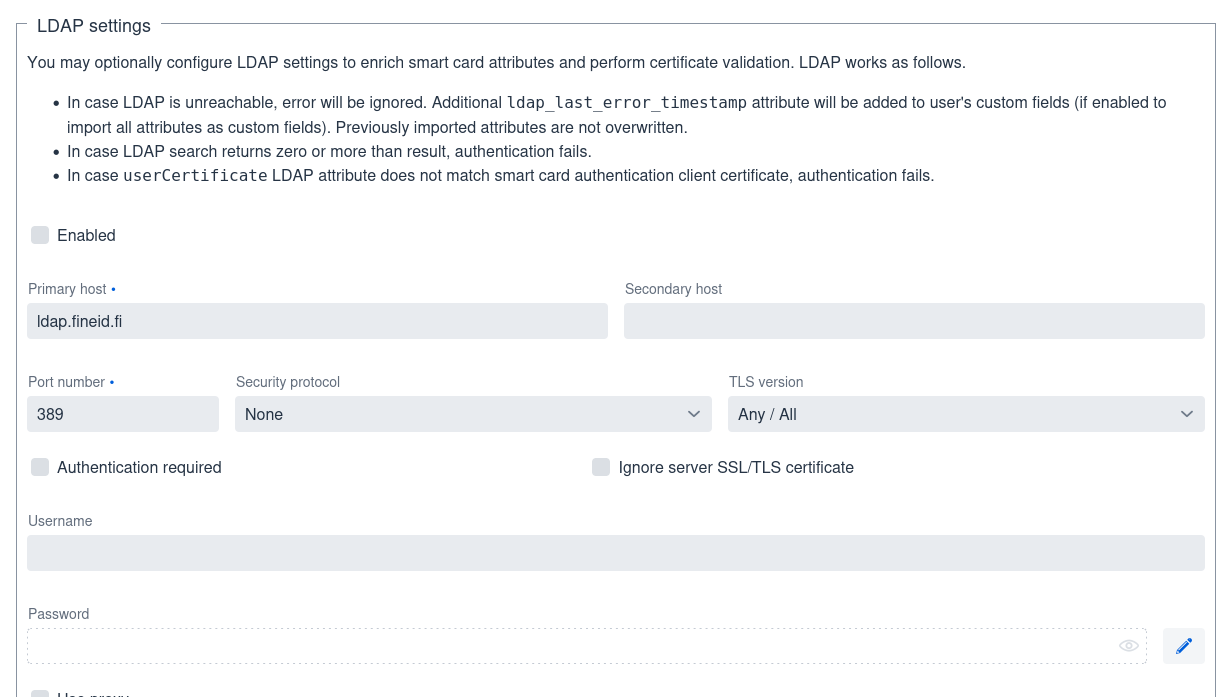
You may optionally enable LDAP certificate checks (disabled by default). Default settings are fine if you are using Finnish electronic ID certificates and LDAP. Check "Enabled" checkbox to enable LDAP checks.
If LDAP is unavailable due to network error, authentication succeeds but if no LDAP search results are available (user certificate not found from LDAP), authentication will fail. Also, certificate MUST match exactly the certificate supplied by load-balancer. If there are more than one search result, authentication will fail.
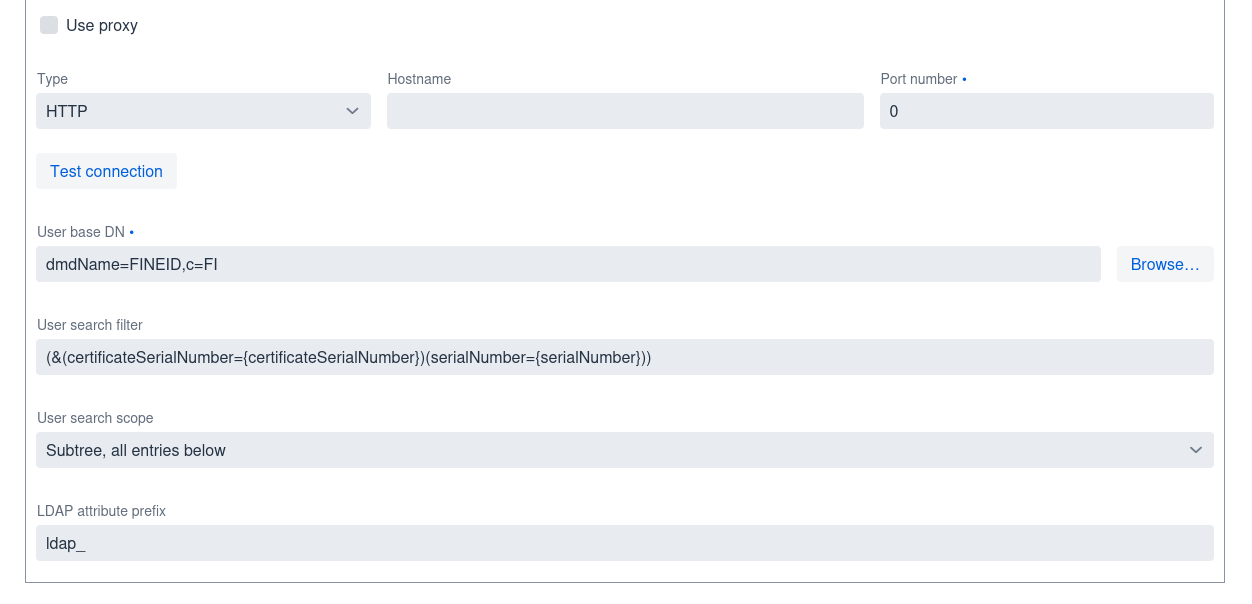
User information
You can configure user attribute mapping in User information tab. You can refer any Subject DN attribute by their name or OID value. Additionally, following special attributes are available:
| Attribute | Description |
|---|---|
upn | User principal name from Subject Alternative Names. OID value is 1.3.6.1.4.1.311.20.2.3 |
email | Email address from Subject Alternative Names. |
certificateSerialNumber | Certificate serial number. |
certificateHashSHA1 | SHA-1 hash of certificate in binary format. |
certificateHashSHA256 | SHA-256 hash of certificate in binary format. |
ldap_* | All attributes from LDAP are available using the ldap_ prefix (prefix is configurable). |
All of these attributes are also available in LDAP search filter.
All attribute names are case-insensitive.