Translating Content
Custom translations are managed via the Translations item on the Main Menu, available to Portal Admin users. Every message string used across Trivore ID — the Management UI and end-user-facing views alike — can be found and customised here, for English, Finnish, and Swedish.
Changes made here are system-wide: they affect every namespace, and can take up to 5 minutes to become visible. Since a change here can't be scoped to just one namespace, only trustworthy individuals should be given permission to edit translations.
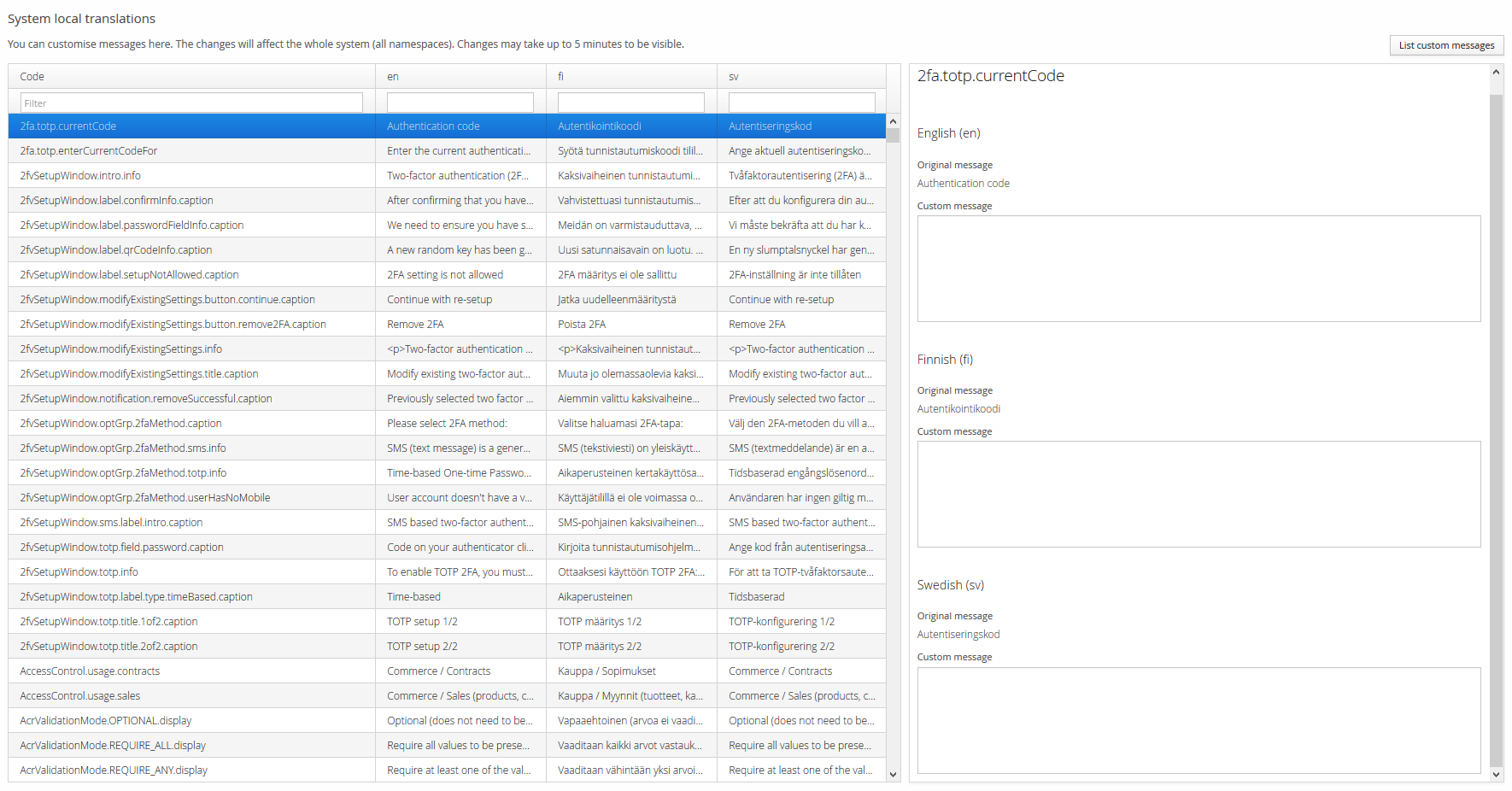
Translation codes
Each message has a code structured as:
{main section}.{sub-section}.{component}.{subcomponent}
Each part is separated by a period (.); a code can have zero or multiple sub-sections or
subcomponents. The structure makes it easier to group and filter through codes — for example,
everything under 2fvSetupWindow.* relates to the MFA setup dialogue.
Editing a translation
Select a message in the table to open it in the panel on the right, which shows the original (built-in) message and an editable Custom message box for each supported language. Changes save automatically as you edit — there's no separate save button.
Finding, importing, and exporting translations
If there are many custom translations, it can be hard to tell which messages have been customised. Use the ⋮ menu, next to Import, for:
- List custom messages — shows only the messages that currently have a custom translation.
- Export — download all custom translations.
The Import button lets you upload translations from a file, useful for applying the same set of custom translations across multiple deployments.