Sending email messages from or through Trivore ID requires configuring Email Gateways. A gateway may be an SMTP service or another supported messaging service — currently SMTP services and the SendGrid Email API.
Trivore ID supports multiple Email Gateways at once. Each is assigned a priority and weight for load balancing, which also provides high availability: if one gateway goes down, the others take over and sending continues without interruption.
Email Gateway management
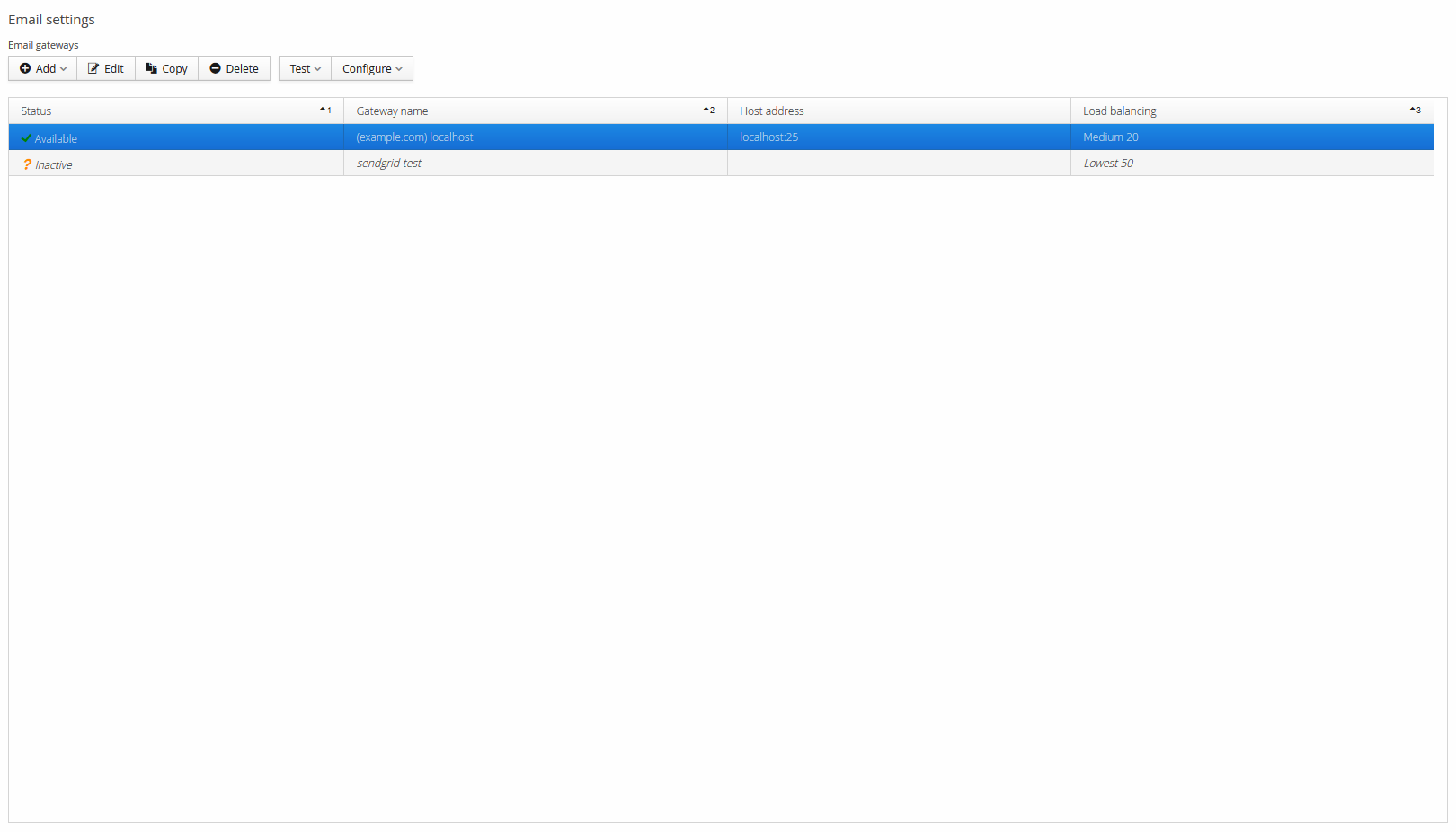
The Email Gateway management view is opened from System Preferences → Communication → Email. It provides tools to:
- List gateways and view their status
- Add new gateways and modify existing ones
- Configure the email sender address
- Test gateways
Adding a new SMTP gateway
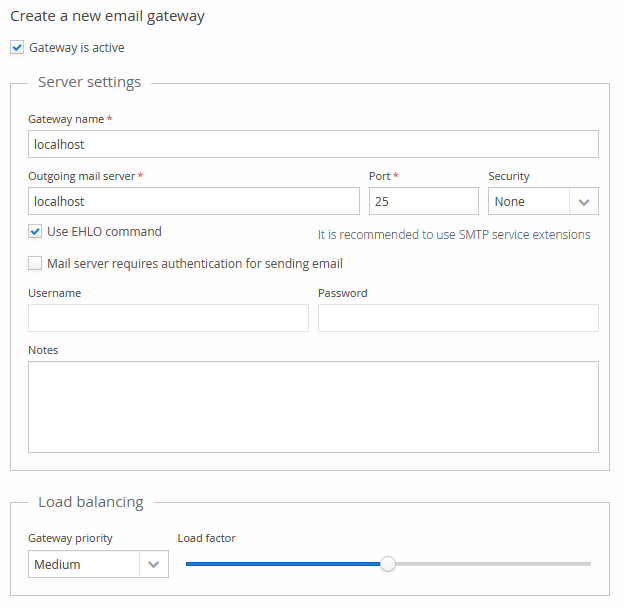
- Open the Email Gateway management view. Select Add and SMTP Gateway.
- Enter a name to identify the gateway.
- Enter the service's hostname as Outgoing mail server, for example
mail.example.com. - Enter the service's port, for example
25. - Select the security option used by the service.
- If the service requires authentication, enter the username and password.
- If you have multiple Email Gateways, configure this gateway's priority and load factor.
- Select Save and Close.
Configuring the sender address
- Open the Email Gateway management view.
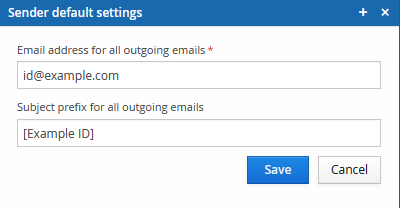
- Select Configure and Sender default settings.
- Enter the sender address.
- Optionally, configure a prefix to add to the subject line of every sent email.
- Select Save.