Password Tasks
This page covers a few password-related tasks that come up occasionally rather than daily, but are still important to know about.
LDAP-only deployments
Some organisations use Trivore ID purely as master data for user accounts — with LDAP authentication as the only way external services and applications sign users in — and don't use any other Trivore ID functionality directly.
Since the LDAP directory is read-only, a user's password must still be changed through the Trivore ID web UI; the sign-in view has a dedicated link for this (see Changing your password without signing in below).
Not all external services check for password expiration during LDAP authentication, which can cause confusing sign-in failures. If that happens, have the user sign in to the Trivore ID web UI directly to check — if their password has expired, they'll be prompted to set a new one there, which resolves the LDAP sign-in issue too. The simplest way to avoid this class of problem altogether is to not expire passwords — see Password expiration below.
Changing your password without signing in
A user who knows their current password, but isn't signed in (or can't sign in to the web UI at all), can change it directly at:
https://{your-id-server}/changePassword
Any of the following query parameters can be added to pre-fill or skip parts of the form; the user is prompted for whatever wasn't supplied:
| Parameter | Value |
|---|---|
ns | The namespace code. |
username | The sign-in username. |
locale | Preferred locale, for example en. |
For example, https://{your-id-server}/changePassword?ns=example&locale=en pre-fills the
namespace and shows the form in English, while still asking for the username and current
password.
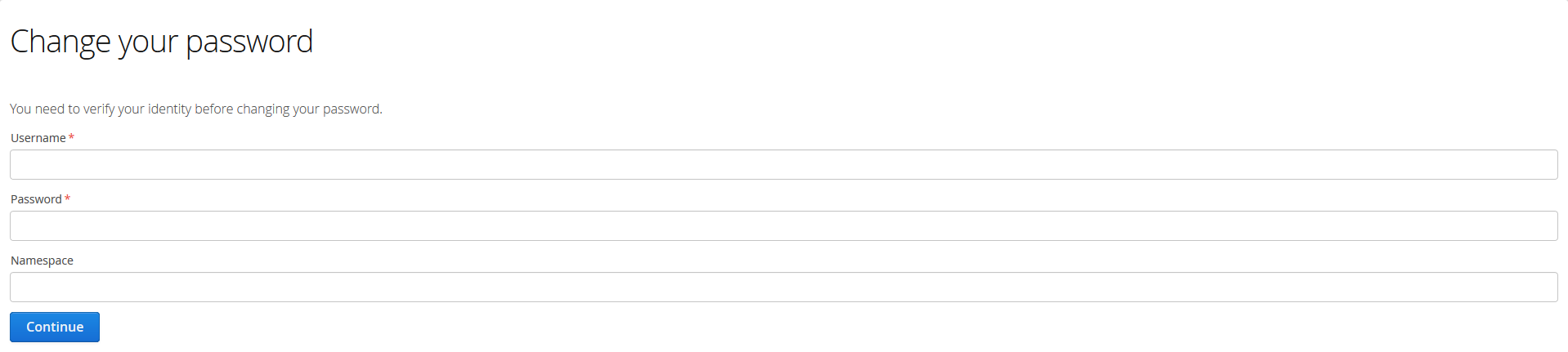
The user enters their current username, password, and namespace, then a new password (entered once, with an option to reveal it to double-check). If MFA is enabled for the account, they'll also need to verify with their configured method. A password that doesn't meet the namespace's requirements is rejected with an explanation.

This page is intentionally unbranded and iframe-compatible, so it can be embedded into another website relatively easily. After too many failed attempts, the account is locked — exact thresholds depend on namespace policy; see Group Policies.
Password recovery
For a genuinely forgotten password (or lost MFA access), use
Password Reset instead — it covers both the
interactive "Password forgotten?" flow and the equivalent /resetPassword direct-link
parameters. Like the change-password form above, it's unbranded and iframe-compatible.
Password expiration
As of the NIST SP 800-63-3 revision (22 June 2017), periodic password expiration is no longer recommended. Trivore ID follows this guidance by default — expiration is only in effect if explicitly configured (see Group Policies).
Where expiration is enabled, a warning is shown at sign-in once all of the following are true:
- The password hasn't expired yet.
- 25% or less of the password's lifetime remains (lifetime meaning the configured maximum password age).
- No more than 15 days (360 hours) remain before it expires.
For example, with a maximum password age of 730 days, the warning first appears 15 days before expiry, and keeps appearing until the password is changed or it expires.
Once expired, the password must be changed to a new one that meets all requirements (minimum length, uniqueness, complexity, and so on). This can happen in any of four ways, which reduce to two underlying methods:
- While signed in — via Personal Menu → Change password, or via the "password expiring soon" warning shown at sign-in (same method, different trigger).
- While not signed in — via the direct change-password link above, or by being forced into it after the password has fully expired (same method, different trigger).
Sign-in via LDAP isn't possible until an expired password has been changed through Trivore ID.
Other tasks
Disabling WebUI sign-in for all accounts in a namespace
Some deployments use Trivore ID purely to authenticate users for external services, with no need for those accounts to sign in to the Trivore ID web UI itself. Removing all Contexts from the namespace's settings achieves this — users who try to sign in see only an error message instead of reaching the web UI.