Dashboard
Dashboard gives an overall view of the state of the system, making it easier to spot and recover from problems. Which panels a user account sees depends on its roles — an account with broad administrative roles sees more than a regular user. Panels can be shown or hidden using the Panels button in the top-right corner.
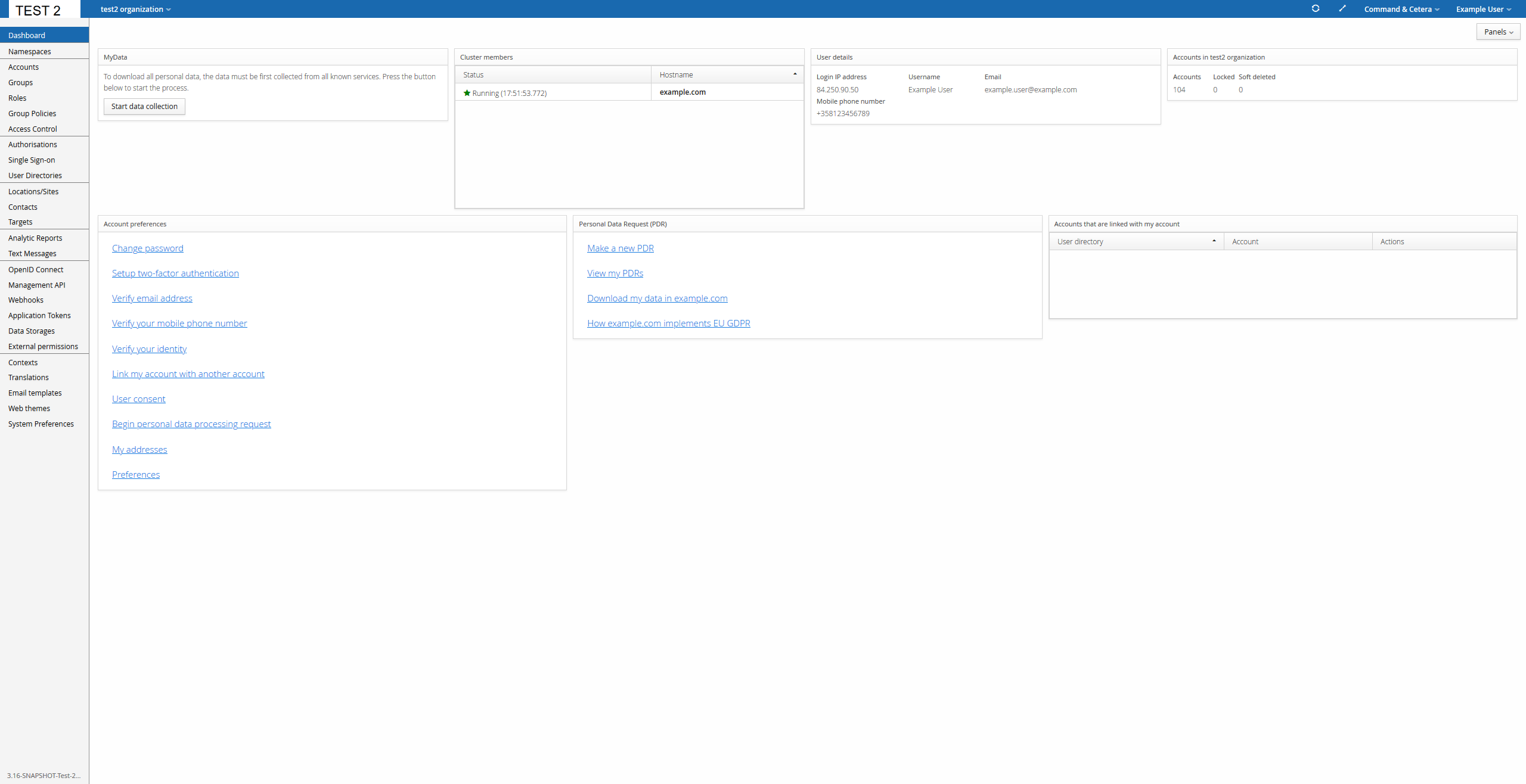
For a regular user account (as shown above), Dashboard also doubles as a shortcut to several common self-service functions, grouped into panels:
- MyData — download all personal data Trivore ID holds on your account. Since this may involve collecting data from multiple services, select Start data collection to begin the process; see Self-service data access.
- Cluster members — status and hostname of each node in the cluster.
- User details — information about the current session: login IP address, username, email, and mobile phone number.
- Accounts in [namespace] — account counts for the current namespace: total, locked, and archived.
- Account preferences — shortcuts to common self-service account actions: change password, set up MFA, verify email address or mobile phone number, verify your identity, link your account with another account, manage user consent, begin a personal data processing request, manage your addresses, and edit your preferences.
- Personal Data Request (PDR) — make a new PDR, view your existing PDRs, download your data, and read how the organisation implements EU GDPR.
- Accounts that are linked with my account — user accounts from other user directories linked to this one.