Client Registration
You can configure your OIDC client's registration by opening it in the client editor.
Registering a new client
In the OpenID Connect view, click Register new. You'll be asked a few initial details about your client, and given the Client ID and Client Secret values. You can then continue editing your client's registration details.
Editing a client
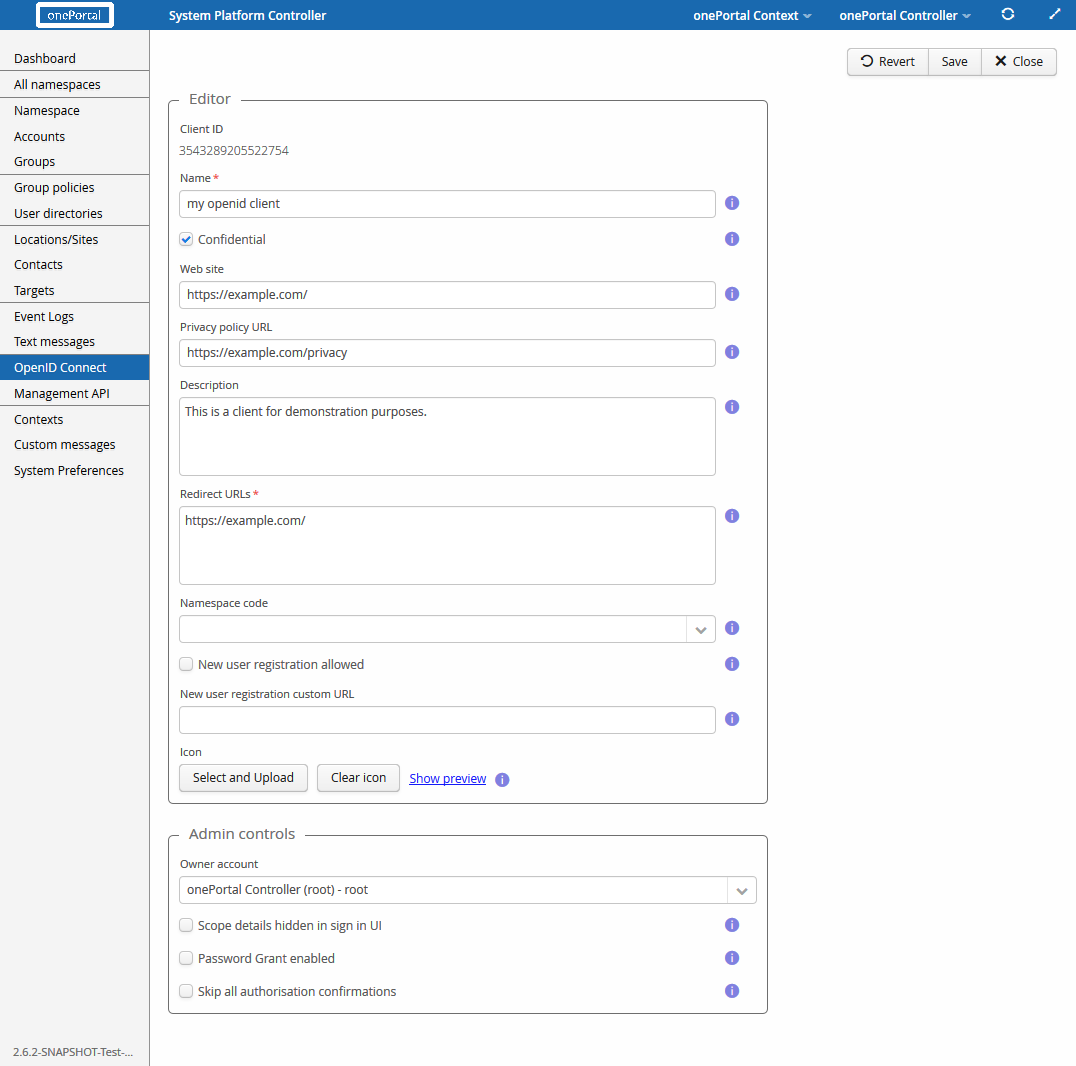
The first item in the editor is the Client ID. It's only shown when editing an existing client's configuration — for new clients, the ID is presented after saving the configuration.
The Name field defines the client's name, shown to users during sign-in. The Confidential option, when checked, tells the provider (Trivore ID) that the client can keep its client secret protected — typically only server-hosted web apps are able to do this. Mobile clients, desktop apps, and similar clients that would store the secret locally aren't secure in this regard.
When the client is confidential, it's authenticated during the Authorization Code request. Public clients can't be authenticated, so it's up to the end user whether they trust the application.
The Web site field is an optional, non-technical URL linking to the client's web site, which may be shown to users during sign-in — "non-technical" here means the value isn't directly related to the OIDC protocol or authentication process, but provides additional information to end users.
Privacy policy URL is another non-technical URL, pointing to a page with the client's privacy policy; it's shown to end users during sign-in.
Description is a short description of the client application, which may be shown to the user during sign-in.
Redirect URLs is a required, technical setting: a list of allowed URLs the client may be
redirected to after signing in. The OpenID Connect protocol requires these URLs to use the
https scheme — the only exception is that http may be used when the host is localhost.
Configure redirect URLs carefully — redirecting users to a malicious web page leaks the access token. In the implicit grant flow, the redirect URL is part of request validation; the page the user is redirected to is ultimately chosen by the client, validated by the provider, and should itself collect and validate the values sent by the provider.
If New user registration custom URL is defined, the "Register new account" button in the
OAuth login view is always visible, regardless of the New user registration allowed
value, and opens this URL. Add template parameters ({clientName}, {clientRedirectUri}) to
the URL wherever you want to pass that information (such as in a query parameter).
The client may also have an icon shown to end users during sign-in.
Admin controls are additional client-related settings. Owner account specifies the user considered responsible for the client's behavior, who also acts as its contact person.
Scope details hidden in the UI sets whether scope (including claims) details are hidden in sign-in user interfaces. Hiding scopes during sign-in is against good practice, but there may be special cases where enabling this is justifiable.
Password Grant enabled allows the OIDC password grant flow. It's recommended not to give third-party clients access to this grant type, since it gives them access to the user's password — the password grant flow is mainly meant for legacy applications adopting OIDC.
Skip all authorisation confirmations, if selected, skips all post-authentication user confirmations about granting the client access. Only enable this for strongly trusted clients, such as those controlled by the identity service (the Trivore ID instance) owner.
Compatibility modes

Some OpenID Connect recommendations can be overridden with compatibility mode settings.
| Compatibility mode setting | Effect |
|---|---|
| Locale claim | Changes the syntax of the locale claim value. The default syntax is a BCP47 language tag (for example en-US). Other options are Java-style (en_US) and language-only (en). |
Customising the authorisation / sign-in view
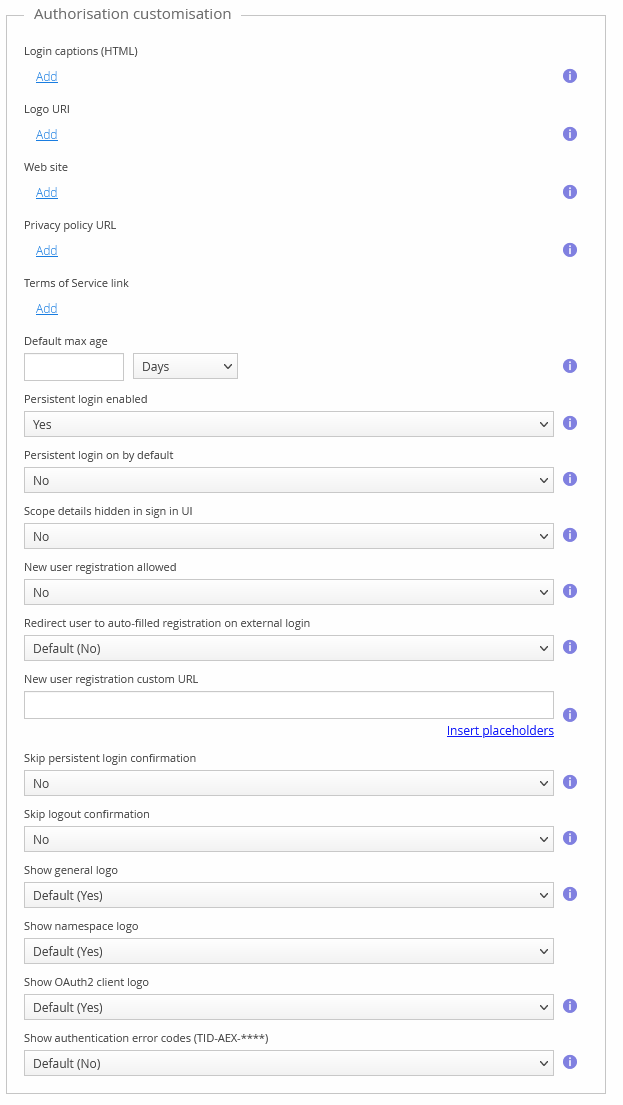
New user registration allowed
Selects whether new users can register in the authorisation view, either using the built-in registration form or by linking to an external registration page.
New user registration custom URL
If you've implemented an external page where users are expected to register, enter its URL here. When the user clicks "Register a new account" in the authorisation view, they're redirected to this URL.
Leave empty to use the built-in registration form.
Restricting who can sign in to your application
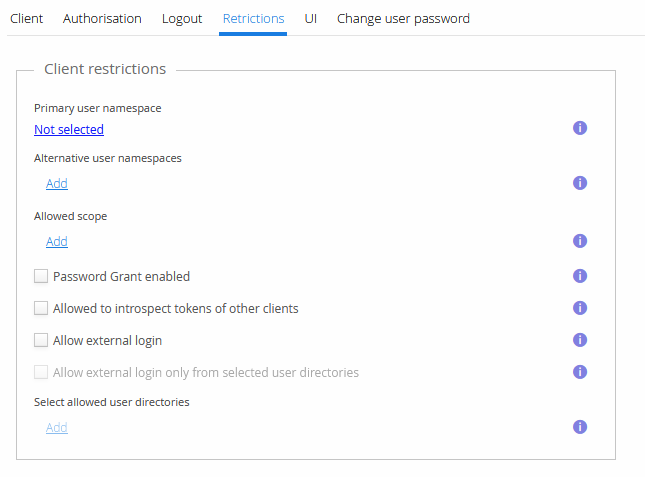
By default, any user in the identity service can sign in to your application. You can limit this by configuring which namespaces users are allowed to come from.
Primary user namespace
The primary namespace is where new user registrations happen; users in this namespace can also sign in. If no primary namespace and no alternative user namespaces are selected, users from any namespace can sign in.
Alternative user namespaces
You can add alternative namespaces users are allowed to sign in from — new user registration isn't possible in these namespaces. If no namespaces and no primary namespace are selected, users from all namespaces can sign in to your application.