Custom Fields (User and Group)
Custom Fields answer the need to store simple, application-specific pieces of information together with a User or Group object, when there isn't an existing field that suits that data.
Example problem
Suppose you need to store the following data about a user:
- First and last name
- Date of birth
- The software license level they've purchased, and its expiration date
The name and date of birth are easy, since the User object already has fields for those. But the license data is tough — there's no ready-made field for it, and even if there was, other applications might already be using it, or could modify it.
The solution is Custom Fields, which let your application add arbitrary, application-specific data to User objects. The fields are meant to hold simple, small JSON-based data, not anything very large — a couple of text fields are perfect.
Data model
Custom Fields are stored inside a JSON object as fields or properties.
Each field must have a name that's unique within the User object — two fields can't share a name, or one's value overwrites the other. There are some limitations on names:
- Names cannot contain periods (
.). - Names cannot start with a dollar sign (
$).
It's recommended to use a name prefix that separates your fields from others.
A field's value can be any JSON-compatible node: text, number, boolean, object, or an array of nodes.
Object and array values let you build a deep tree hierarchy of values, but this can introduce problems when it's time to update them. Fields with direct values, or at most a one-level object as a value, are usually the better choice.
Management API
The User and Group APIs provide similar endpoints for managing Custom Fields:
- Get all Custom Fields as a JSON object.
- Replace some Custom Fields.
- Delete all Custom Fields.
- Patch Custom Fields using JSON Patch.
See the API documentation for the required permissions and scopes.
Get all Custom Fields
Returns a JSON object containing all Custom Fields of the target User or Group that you have access to.
Replace some Custom Fields
Lets you add, replace, or delete whole fields.
Delete all Custom Fields
Deletes all Custom Fields. If some fields are write-protected and you don't have write access, the request doesn't succeed.
Patch Custom Fields
Lets you modify Custom Fields using an array of JSON Patch operations — useful when you need to modify a sub-field of an object or array value.
Note that move and copy operations aren't currently supported in these APIs.
Searching users using Custom Fields and the filter parameter
Data in Custom Fields can be referenced in the filter parameter of the Search User or Search
Group APIs.
Custom Fields usually aren't indexed. Searching a very large user base using only unindexed fields can be slow, and may cause service issues for others — if you experience slowdowns, consider whether searching by an unindexed field is really necessary, and discuss adding index support with your service provider.
For example, you can search for users who have a full license level and some tokens left using the filter:
customFields.myappLicense.level eq "full" AND customFields.myappTokensLeft gt 0
Because myappLicense.expires is a text value, it can't be filtered using the gt comparison
operator. If the expiration date were stored as a number instead, for example 20261231, you
could use a filter like:
customFields.myappLicense.level eq "full"
  AND customFields.myappLicense.expires gt {currentDateAsNumber}
  AND customFields.myappTokensLeft gt 0
Management UI tools
In the Accounts view, select a row and use Info → Show custom fields to open a read-only view of that user's Custom Fields — again, only accessible fields are shown.
In the Groups view, edit a Group and go to its Miscellaneous tab; the Group editor supports both reading and writing Custom Fields there.
Protecting access to Custom Fields
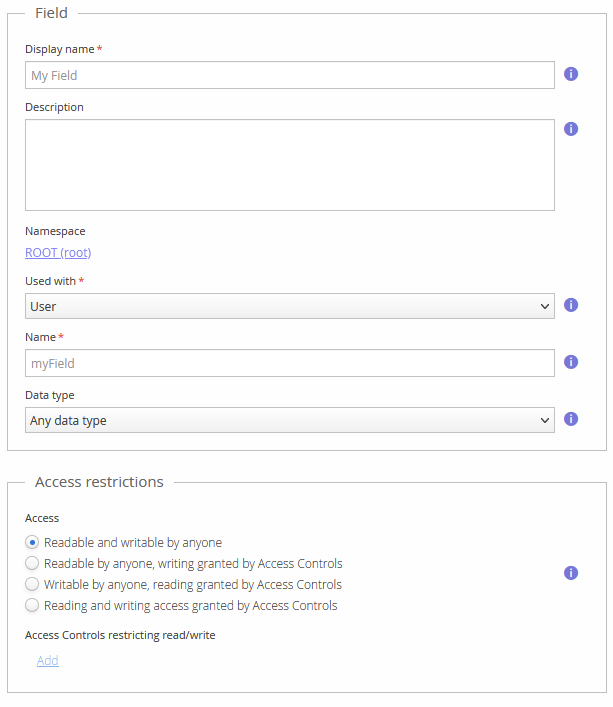
In the Management UI, open the Custom fields view. Here you can manage namespace-specific Custom Field definitions — these aren't required to create and use Custom Fields, but they can be used to restrict access to them, and to set a data type that protects against setting a value of the wrong type.
OIDC Claim
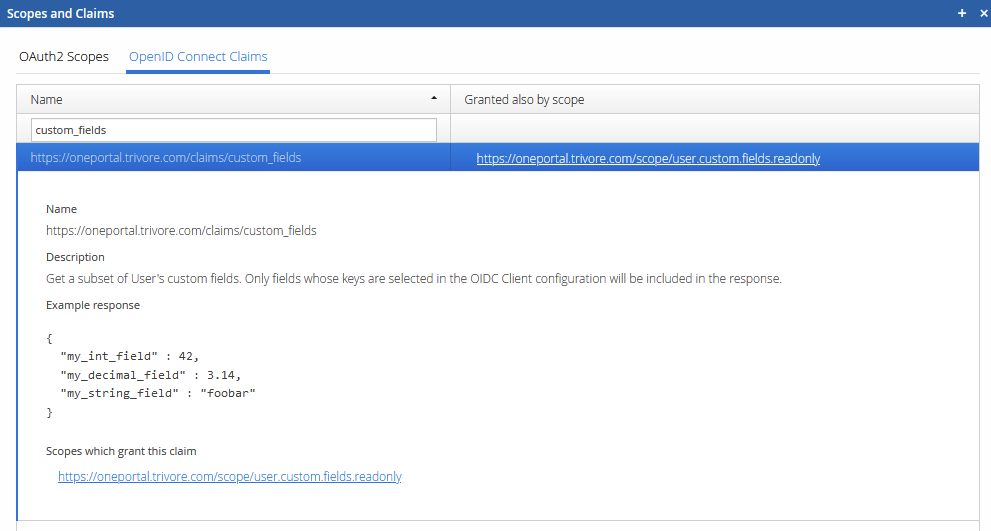
A user's Custom Fields can be read through the OpenID Connect claim system. The Custom Field
names need to be pre-registered in the OIDC client's configuration; matching fields are then
returned in the https://oneportal.trivore.com/claims/custom_fields claim value, granted by
the https://oneportal.trivore.com/scope/user.custom.fields.readonly scope. See the "Scopes
and Claims" tool in the Management UI for details.