How to Use the Change Password Form
This page covers how to link to the "Change password" form from external applications.
The "Change password" form currently allows a user to sign in and change their password to a new one. The form checks that the new password is valid, and can redirect the user to a specified URL afterward.
The base URL is https://my.id.service/changePassword (case sensitive). You can add optional
query parameters to the URL, then redirect the user to the generated URL.
Supported query parameters:
| Parameter | Value | Supported after version |
|---|---|---|
display | Display/layout selector, corresponding to the OpenID Connect display parameter. | 3.24 |
id_token | A valid user ID token. With this, the user doesn't need to enter a username — only their password (and possibly other required authentication methods). Providing the ID token also lets OAuth2/OIDC client-specific customisations be applied to the user interface. | 3.24 |
locale | Preferred initial language displayed, for example fi, en, or sv. | 3.24 |
username | Optional sign-in name (username, email, or phone number) to pre-fill in the form. | |
ns | Optional namespace code to pre-fill in the form. | |
ru | Optional Return URL, where the user is directed after changing their password. It must meet the requirements set in configuration. |
Customisation of the user interface
The operation and look of the "Change Password" pages can be customised.
Operational changes
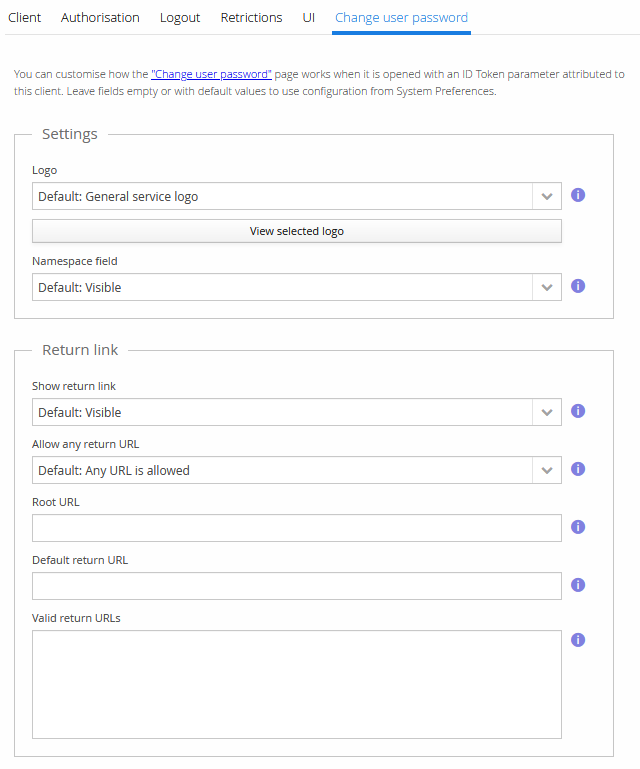
The operation of the pages can be customised in the Management UI, either system-wide via System Preferences → Base settings → Change password, or at the OAuth client level via OpenID Connect clients → Edit → Change user password.
Branding with style changes
The style can be customised with CSS — see User-interface styling.